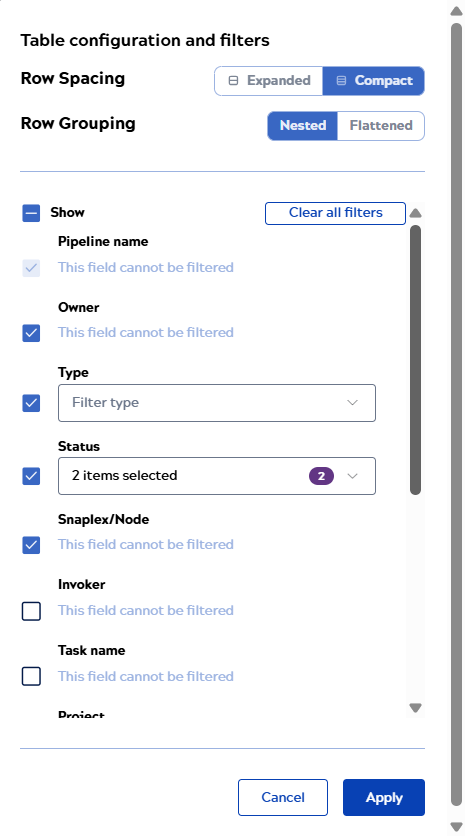
Configure the asset table and filters
Click  to open the Table
configuration and filters dialog. From this dialog, you can:
to open the Table
configuration and filters dialog. From this dialog, you can:
- Select a Row spacing option:
- Expanded to show fewer rows with increased row height.
- Compact to show more rows with reduced row height.
- Dense for the same number of rows as Compact but with reduced icon size and padding.
- Select a Row grouping option: Nested or Flattened.
- Toggle Row striping on or off.
- Toggle Automatic refresh on or off.
- Use the Show field checkbox to show or hide all columns.
- Add or hide individual columns by selecting or clearing the checkbox next to each field.
The Pipeline name column can't be hidden.
- Choosing values from a filter dropdown for a column not selected for display still includes the column in the table and applies the filter.
- Re-order columns by hovering on the right side and grabbing the handles.
- Filter columns that have a filter dropdown, such as Type and Status.
- Clear filters when one or more filters are active.
Click Apply to save the changes or Cancel to discard them.
The asset table persists these changes across login sessions.