


Find executions
Tens of thousands of pipelines might execute in a production environment in a short time period. Use the following controls on the Pipeline executions page to find a pipeline of interest:
- For the Execution history table, select the smallest time period possible to reduce the number of executions in the list.
- Click the arrow on a sortable column,
 , to sort ascending or descending.
 - For the Execution history table, use the Filter
presets (Errors, Stopped, Completed) or click the funnel icon
 on a specific column to filter it. You can filter
the Type, Status, and
Project.
on a specific column to filter it. You can filter
the Type, Status, and
Project. - Click
 to open the Table configuration and filters dialog to hide or show
columns, set filters, and rearrange columns.
to open the Table configuration and filters dialog to hide or show
columns, set filters, and rearrange columns.
Filters apply to searches and the execution list for the current session. To remind you
that filters are active, the filter icon fills,  , and the
Table configuration and filters control is marked with a purple dot
, and the
Table configuration and filters control is marked with a purple dot
 .
.
The following sections describe how to find and filter the required pipelines:
Clear filters
- Click an active preset filter to clear it.
- Clear a column filter by clicking its filter icon, . For the
multi-select Status and Project column
filters, clear values individually or by clicking the Select All
checkbox twice. For the Type column filter, click
All.
- In the table header, click Clear all filters.
- Clear specific filters or all filters from the Table configuration and
filters control, . Unset specific filters or click Clear all
filters, and click Apply.
Use search
Enter all or part of a pipeline name, task name, or owner email address in the Search box. After a search, the page URL contains the search string, filters, and column preferences. You can bookmark it to perform the same search later or copy it to share with colleagues.
You can also use the search box to search by pipeline parameters, for parent and child executions, or by RUUID.
Search failing or failed executions
Search failed executions in one of the following ways:
- Click the Errors filter preset. This selects all executions with a status of failed or completed with errors.
- From the Status column:
- Click the filter icon,
 .
. - Select Failing (available in the Running pipelines table) or Failed (available in the Execution history table).
- Click the filter icon,
- From the Table configuration and filters control, :
- Scroll to the Status column.
- Select Failing (available in the Running pipelines table) or Failed (available in the Execution history table).
- Click Apply.
Use multiple filters
You can apply multiple filters with the Filter
presets (available in the Running pipelines
table), by clicking on individual columns, or from the Table
configuration and filters dialog:
- On the right side of the table header, click the Table configuration and
filters control, .
- Select the appropriate filter values.
- Click Apply.
Search by project
Find the execution of a pipeline from a specific project in one of the following ways:
- From the Project column:
- Click the filter icon, .
- Select My Executions, All projects or
Shared checkbox. You can also expand a Project space to select individual projects.
- My Executions: Filters the execution list to show only the pipelines that you have executed. This filter is selected by default for the non-admin users. You can combine this filter with individual project selections to view your own executions and those from the selected projects.
- All projects: Displays executions across all the projects you have access to, without needing to select them individually. This filter is selected by default for the admin users. When selected, individual project and My executions checkboxes are disabled. This filter displays all executions as per your permissions, regardless of which projects they belong to.
- Click the filter icon,
- From the Table configuration and filters control, :
- Scroll to the Project column.
- Click My Executions, All projects, or , shared, Project space, or expand a Project space to select individual projects.
- Click Apply.
The filter includes executions in projects for which you have at least read permission. Enter a term in the Search bar to search the filtered projects. You can bookmark the page to save the filter and search.
Search by pipeline parameters
From the Search box, you can search by parameter for pipelines that are invoked by a task or as child pipelines by a Pipeline Execute Snap. The search returns pipeline executions based on the captured pipeline parameter values and error parameter values configured in the pipeline properties. The search string is case-insensitive and if a status filter isn't active, returns a list of all matching executions regardless of their status. If a status filter is active, the execution list matches the filtered statuses.
- The pipeline properties enable capture of parameters.
- A task or a Pipeline Execute Snap executes the pipeline.
Search by invocation type
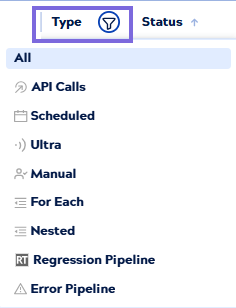
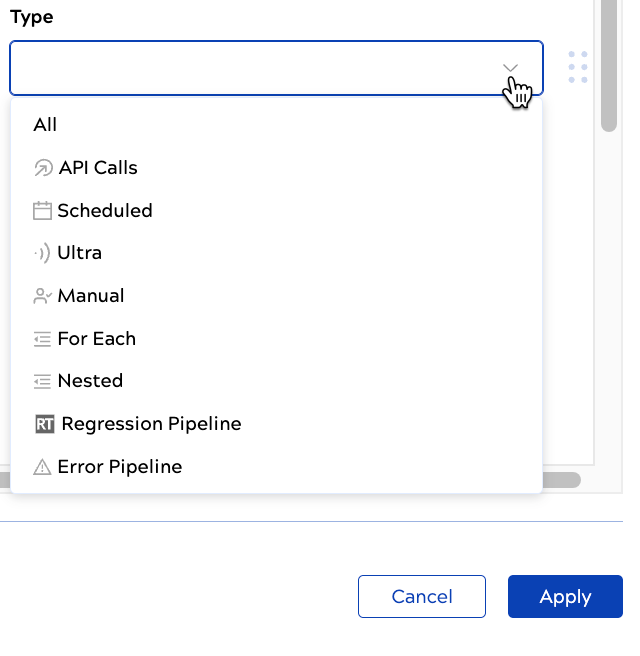
You can filter by one invocation type at a time. Find an execution by invocation type in one of the following ways:
- From the Type column:
- Click the filter icon, .
- Select the invocation type.
- Click the filter icon,
- From the Table configuration and filters control, :
- Scroll to the Type column.
- Select an invocation type.
- Click Apply.
Search for parent and child pipeline executions
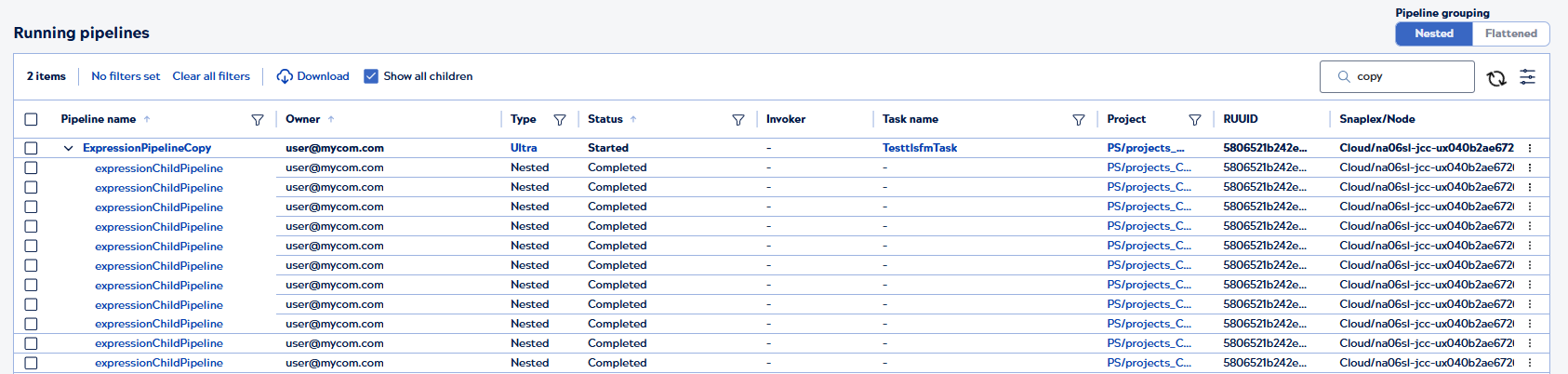
With the Nested option selected, when you enter a term in the Search box, the Show all children option appears in the table header. If checked, a search that returns a parent execution also returns all children regardless of whether they meet the search criteria. If unchecked, a search that returns a parent execution only returns children that match the search criteria.
In the image below, the Show all children option is enabled. The
child executions don't match the search term copy, but they do display with
the parent execution expanded.
In the image below, the Show all children option is disabled. With the
ExpressionPipelineCopy execution expanded, only the child execution that
matches the search term, copy, displays.

Search for pipelines in deep hierarchies
When you search in the nested view, the table flattens hierarchies of more than two levels to reduce the number of displayed rows. The table shows the top-level parent, a placeholder row for hidden intermediate levels, and child pipelines that match the search term.

To view the hidden levels, click the Expand hidden hierarchy row. The table displays all intermediate levels between the parent and matched pipelines.
The following scenarios illustrate how the table displays search results at different hierarchy depths:
Scenario 1: Matches in level one or two
When a search matches a pipeline one or two levels below its parent, the table displays the complete hierarchy. For example, a search that matches a child pipeline shows both the parent and the matched child with the standard hierarchical indentation.
Parent pipeline
  └─ Child pipeline (matched)
Scenario 2: Matches in level three or greater
When a search matches a pipeline three or more levels below its parent, the table displays:
- The top-level parent pipeline
- A placeholder row labeled Expand hidden hierarchy
- The matched pipelines
For example, if a matched child pipeline is five levels deep, the table shows the top-level parent, the placeholder row indicating three hidden levels, and the matched pipeline.
Top-level parent pipeline
  └─ Expand hidden hierarchy (3 levels) ▼
     └─ Child pipeline (matched)
Scenario 3: Multiple matches under a common parent
When pipelines at different levels match the search and share a common parent, the table groups them under a single placeholder row. Individual hierarchical relationships between the matched pipelines aren't displayed. For example, Pipeline A and Pipeline B have different parent pipelines between them and the common parent, but these intermediate levels are hidden by default.
Common parent pipeline
  └─ Expand hidden hierarchy ▼
     ├─ Pipeline A (matched)
     ├─ Pipeline B (matched)
     └─ Pipeline C (matched)
Search by runtime ID (RUUID)
Paste a runtime ID directly into the Search box or the Filter dialog to find a specific execution. For child executions, expand the parent as many levels as necessary. To simplify locating a child execution, clear the Show all children checkbox, which reduces the result tree to just children that match the search term.