


Handling Missing Values in a Dataset
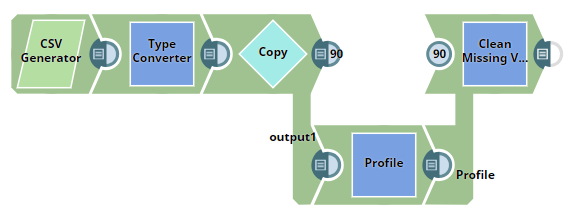
This pipeline demonstrates how to use the Clean Missing Values Snap to process missing values in a dataset using the most popular value (mode).
-
Use the
Copy
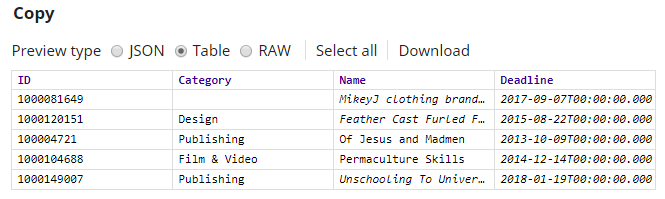
Snap to duplicate the input data
stream.
The Snap is configured to output two streams:
- The first stream is passed to the Clean Missing Values Snap.
- The second stream is passed to the Profile Snap to compute field statistics.
-
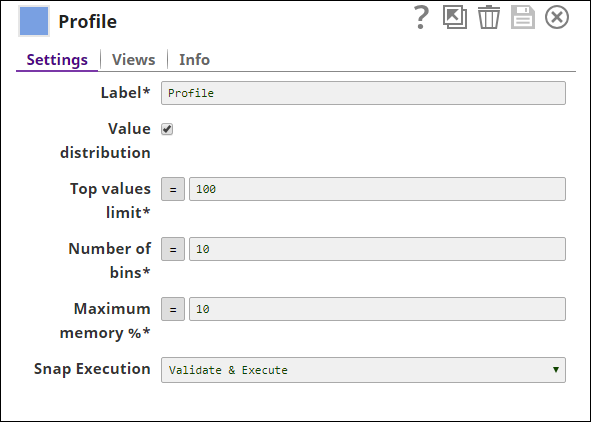
Configure the Profile Snap to calculate
field-level statistics on the input data.
This Snap identifies missing values and calculates the most popular value for each field.
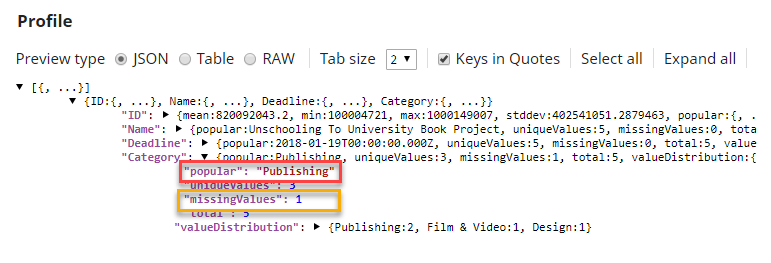
Note: In this example, the most popular value in the$Categoryfield isPublishing, which is used to fill in missing values. -
Configure the Clean Missing Values Snap to impute missing values with the most popular value.
The Snap takes two input views:
- The first input view receives the raw data from the Copy Snap.
- The second input view receives the statistics from the Profile Snap.
Configure the Snap with the rule Impute with Popular to handle missing values in the
$Categoryfield.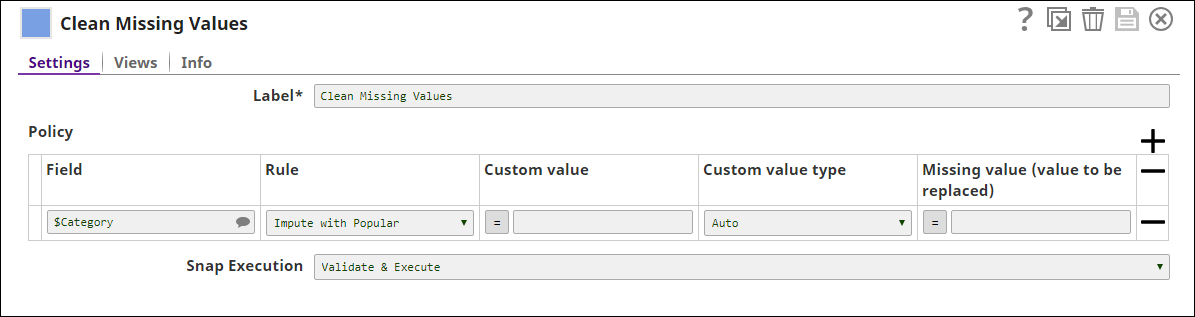
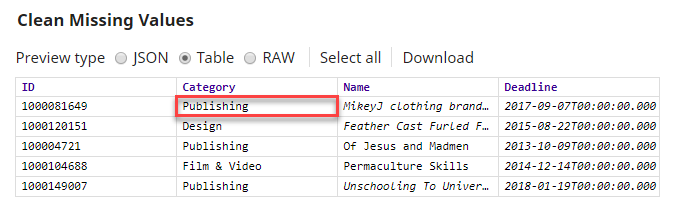
Note: The Snap replaces missing, null, or whitespace values with the most popular value derived from the Profile Snap.
- Download and import the SLP file into your Environment.
- Configure Snap accounts.
- Provide Pipeline parameters, if any.