


MCP Function Generator
Overview
Use this Snap to convert the tools available from an MCP server to a list of function definitions, with the additional ability to add "list resource" and "read resource" to the function definitions list. You can connect a series of MCP Function Generators in one pipeline, with each one configured to call a different MCP Server. The Tool Path field allows you to select the specific pipeline responsible for executing the tool call, such as the pipeline containing the MCP Invoke Snap. Additionally, you can define custom metadata to be passed along with the tool call.
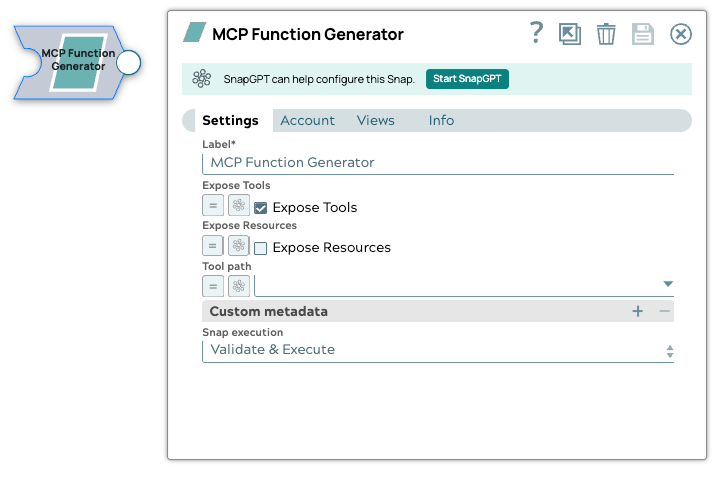
- This is a Transform-type Snap.
Prerequisites
- A valid MCP Account with required fields provided.
Snap views
| Type | Description | Examples of upstream and downstream Snaps |
|---|---|---|
| Input | This Snap has one document input view. | |
| Output | The output contains a list (array) of tools or functions. Each item describes one function that can be used. The output schema includes a set of MCP functions, each with metadata (the MCP operation to perform) and a structured definition of what input parameters they expect. | |
| Learn more about Error handling. | ||
Snap settings
- Expression icon (
 ): Allows using
JavaScript syntax to access SnapLogic Expressions to set field values dynamically (if
enabled). If disabled, you can provide a static value. Learn more.
): Allows using
JavaScript syntax to access SnapLogic Expressions to set field values dynamically (if
enabled). If disabled, you can provide a static value. Learn more. - SnapGPT (
 ): Generates SnapLogic Expressions
based on natural language using SnapGPT. Learn
more.
): Generates SnapLogic Expressions
based on natural language using SnapGPT. Learn
more. - Suggestion icon (
 ): Populates a
list of values dynamically based on your Snap configuration. You can select only one
attribute at a time using the icon. Type into the field if it supports a comma-separated
list of values.
): Populates a
list of values dynamically based on your Snap configuration. You can select only one
attribute at a time using the icon. Type into the field if it supports a comma-separated
list of values. - Upload
 : Uploads files. Learn more.
| Field/Field set | Type | Description |
|---|---|---|
Label
|
String |
Required. Specify a unique name for the Snap. Modify this to be more appropriate, especially if more than one of the same Snaps is in the pipeline. Default value: MCP Function Generator |
| Expose Tools | Checkbox |
Required. Select to include tools available from an MCP server to be converted into a list function definitions. Default value: Selected |
| Expose Resources | Checkbox |
Select to include two predefined tools: "read_resource" and "list_resources" into the list of function definitions to enable the LLM to list available resources and read the resources. Default value: Selected |
| Tool path | String/Expression/ Suggestion | The full path to the tool pipeline. |
| Custom metadata | The metadata associated with the
function definition. This metadata is user-defined and can be used in subsequent
Snaps, such as the Pipeline Execute Snap, to enable more flexible and contextual execution.
These custom metadata key-value pairs appear under the
|
|
| Key | String/Expression | Specify the key to use for the metadata. If the metadata key is empty, the
Snap displays an error. Default value: N/A Example: key1 |
| Value | String/Expression |
Specify the value to use for the metadata. If the metadata value is empty, no error is displayed, however, appears as null in the output.
Default value: N/A Example: value1 |
| Snap execution
|
Dropdown list |
Choose one of the three modes in
which the Snap executes. Available options are:
Default value: Validate & Execute Example: Execute only |