


HTML to PDF Converter
Overview
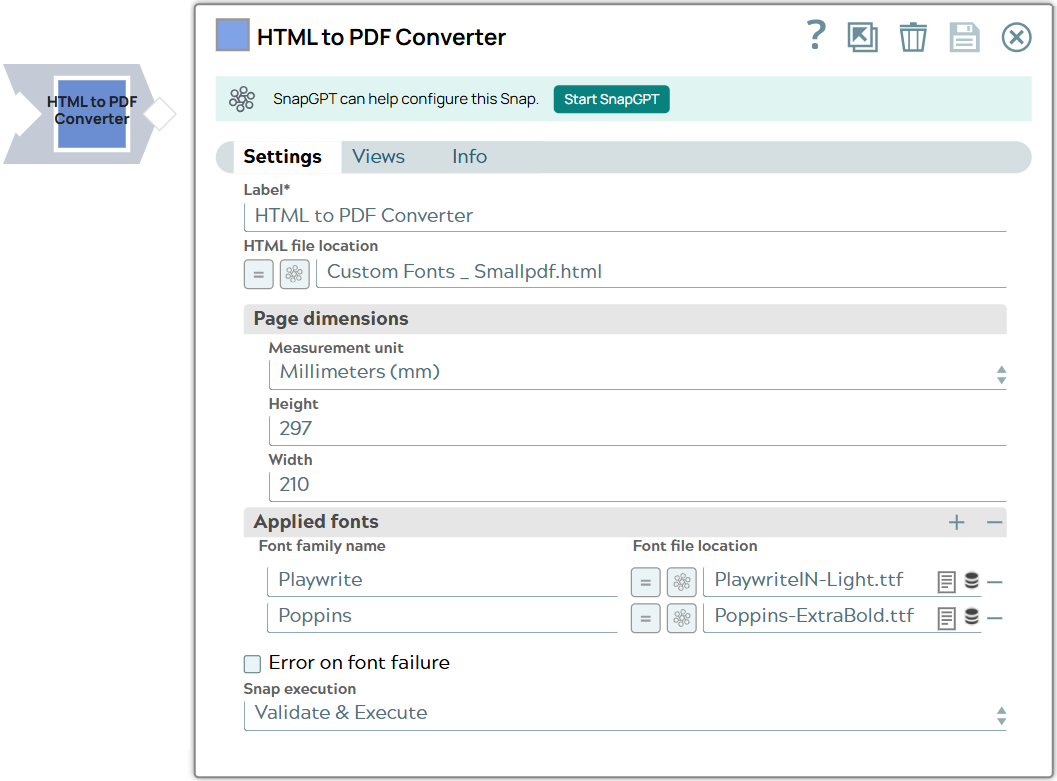
This Snap reads one or more binary HTML streams and writes them to as many PDF binary output streams. It also allows you to configure the page size and fonts for rendering the output PDF files.
- This is a Transform-type Snap.
 Works in Ultra Tasks
Prerequisites
None.
Limitations
- Some modern CSS features such as flexbox or grid layout, may not be rendered with complete accuracy in the output PDF data.
- By default, character support is largely limited to western European characters,
Arabic numerals, and basic symbols. Characters that cannot be rendered with the
available fonts will be rendered as
#. For expanded character support, such as unicode characters, additional languages, or symbols like Emoji, provide the font that supports these characters. Learn more on the Best practices to render custom fonts.
Snap views
| Type | Description | Examples of upstream and downstream Snaps |
|---|---|---|
| Input | This Snap has exactly one binary input view. The input should contain the binary data of an HTML file. | |
| Output | This Snap has exactly one binary output view. The output contains the binary data of a PDF file. | |
| Error | Learn more about Error handling in Pipelines. | |
Examples
- Generate a PDF version of an HTML web document: This example pipeline demonstrates how to convert an HTML resource into a PDF file using the HTML to PDF Converter Snap.
- Generate a raw PDF version of an HTML web document: This example pipeline demonstrates how to convert an HTML resource into a raw PDF file with focus on only content (and not its rendering) using the HTML to PDF Converter Snap.
Snap settings
| Field set/Field name | Description |
|---|---|
| Label
|
Required.Specify a unique name for the Snap. Modify this to be more appropriate, especially if there are more than one of the same Snap in the pipeline. Default value: HTML to PDF Converter Example: Convert HTML to PDF with fonts |
| HTML file location
|
Specify the URL of the source HTML file to render as-is the images and other references
in the CSS from the HTML source in the PDF output. The Snap uses the base URL in
this address to resolve the image paths and CSS references. This field supports
URIs that use HTTP, HTTPS, and file (file://) protocols for the source HTML file
definition.
Important: This field does not support
sldb:// location for the source HTML location.
Default value: N/A Example: https://html.spec.whatwg.org/multipage/workers.html |
| Page dimensions |
Use this field set to define the page dimensions for the PDF output. |
| Measurement unit
|
Specify the unit of measurement for the page dimensions.
Default value: Inches (in) Example: Millimeters (mm) |
| Width
|
Specify the width for each page in the PDF output. Default value: N/A Example: 8.5 |
| Height
|
Specify the height for each page in the PDF output. Default value: N/A Example: 11.67 |
| Applied fonts |
Provide the list of fonts used in the styling of the HTML content that should be applied to text in the created PDF file and the respective .ttf file locations. Note: The Snap supports only TrueType fonts (TTF) for the PDF
conversion.
|
| Font family name
|
Specify the name of the font family. Make sure that it exactly matches the
Default value: N/A Example: Alata |
| Font file location
|
Specify the location of the TrueType font (.ttf) file. You can upload and specify the corresponding .ttf file from the SLDB or the local file system (file://). Default value: N/A Example: alata-regular.ttf |
| Error on font failure
|
Select this checkbox to enable the Snap to report an error instead of falling back to available font backups when a specified font file cannot be accessed or applied. Default status: Deselected |
| Snap execution
|
Choose one of the three modes in
which the Snap executes. Available options are:
Default value: Validate & Execute Example: Execute only |
Best practices to render custom fonts
- The font name provided in the Snap's Applied fonts > Font family name should match a defined font-family name in the CSS of the HTML content.
@font-facerules in the CSS may result in adverse behavior in the rendered PDF due to conflicts in font source when font files are provided through Snap settings. For best results, avoid using@font-facerules in the HTML's CSS.
Troubleshooting
| Error/Warning | Reason | Resolution |
|---|---|---|
| Warning: Incorrect File Path: <file/path/with/file.name> | The asset used/referenced in the HTML file (source) could not be found. | Specify the HTML file location for the HTML to PDF Converter Snap to resolve these asset paths. |
| Warning: The file path: /style/css/manual.css is not in the current org | The Snap cannot locate/access the CSS file specified/referenced in the HTML source. | |
| Warning: The file path: /style/css/fonts/mynewfont.ttf is not in the current org | The Snap cannot locate/access the font (.ttf) file specified/referenced in the HTML source. |