Subscription with an API key

  • A valid tested Service in the Unpublished or Testing status.
To configure a subscription with an API key:
  1. Open a version of the Service.
  2. Open the Subscriptions tab.
  3. Click Subscription settings.
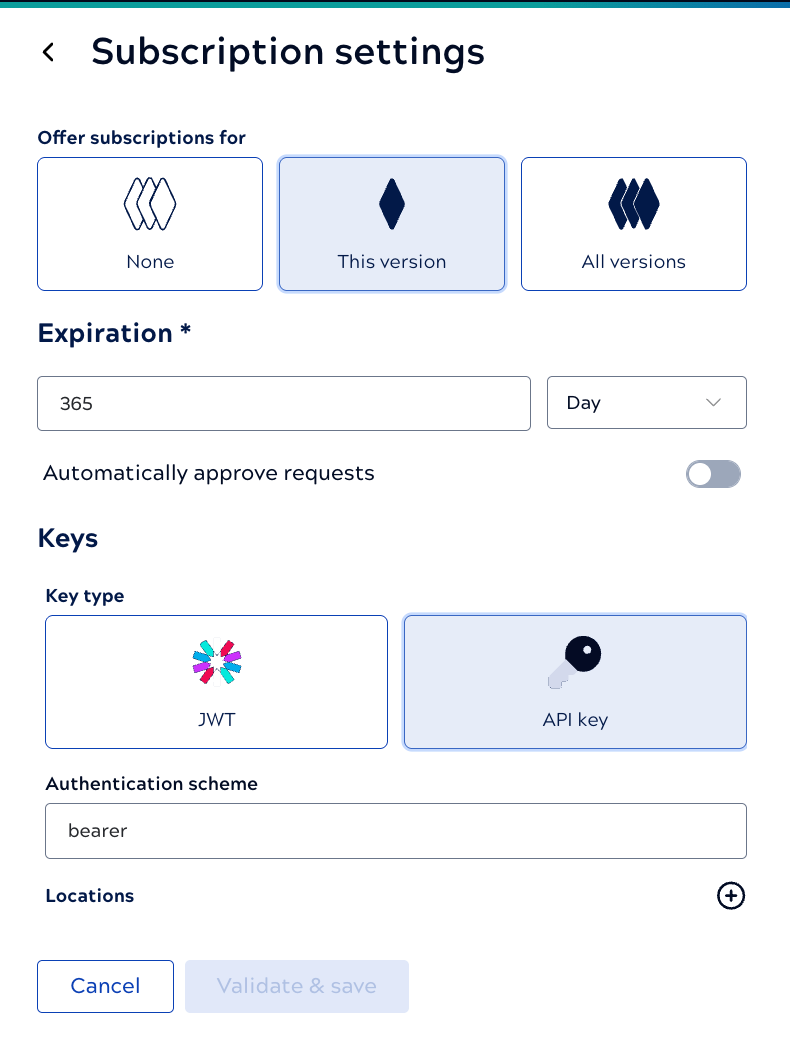
    The Subscription settings panel opens:
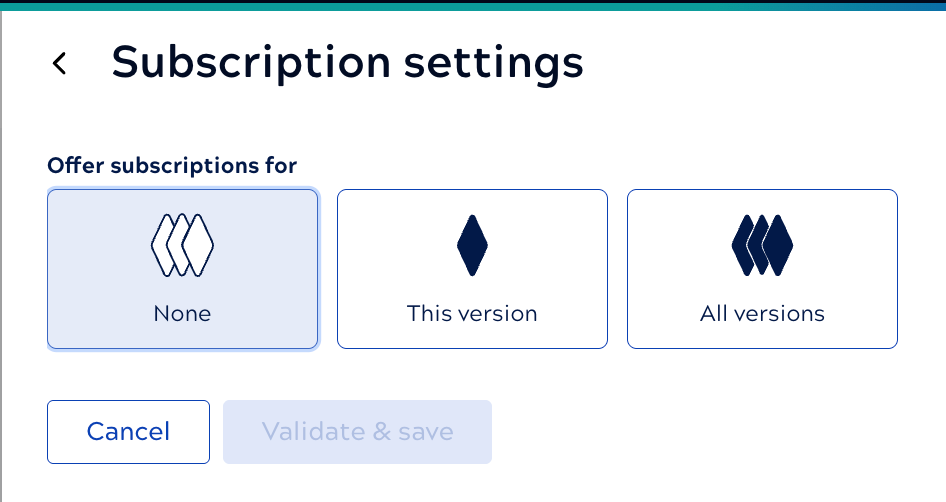
    Subscription settings panel

  4. Select whether the subscription configuration should apply to all versions of the Service or only the current version.
  5. Enter a numeric value ≥ 1 and select the time unit for the subscription expiration.
  6. To automate approvals, click the Automatically approve requests toggle.
  7. For Key type, select API key.
  8. For Authentication scheme leave the value Bearer.
  9. Click the plus icon to the right of Locations.
    1. For the first field, select whether to check for the token in the Header, Query parameters, or in both. Note: We recommend restricting API key locations to HTTP headers only to avoid accidental leakage.
    2. For Value, name the parameter that will hold the key. For example, x-api-key. APIM 3.0 generates the keys for subscribed consumers.
  10. Click Validate & save.
    The Subscriptions tab now provides information on pending, active, and rejected subscriptions:
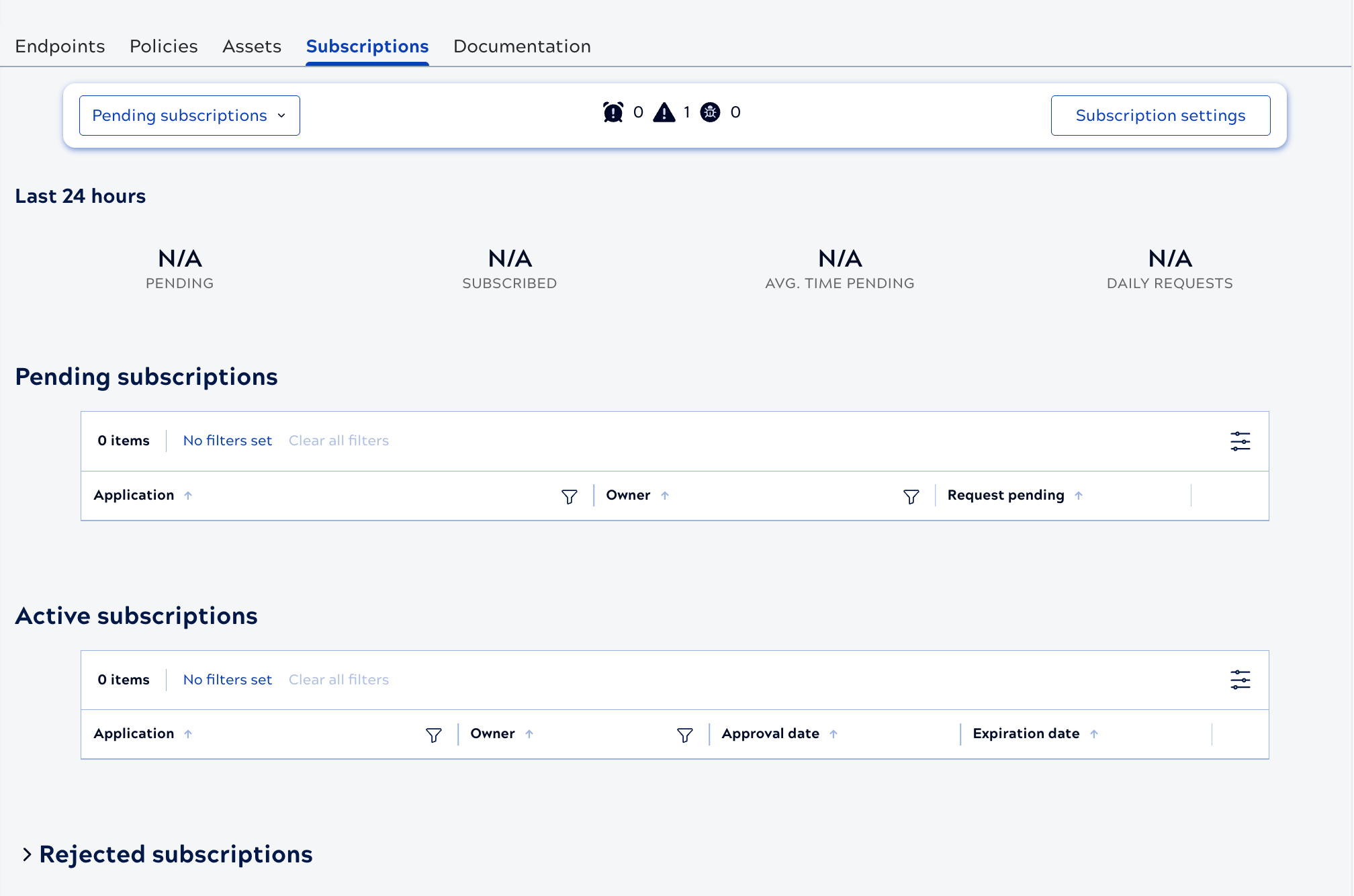
    Subscriptions tab with an active subscription

  11. Test the API key by setting the Service version to Testing
    This creates a temporary Application and generates an API key that you can use to test.
  12. When ready to publish, change the Service version status to Public.
    In the DeveloperHub site, when a consumer selects the Service version, the Subscribe button is available:
    Service version with Subscribe button.

For subscriptions that aren't automatically approved, when a consumer requests a subscription, the Subscriptions tab shows it as pending:
Pending subscription

The Service owner or an Environment admin can use the three dot menu to approve or reject the request.
Approved subscriptions display in the Active subscriptions table. In the DeveloperHub portal, the Service version shows the consumer that their request was approved. From the Active subscriptions table, use the three dot menu to revoke or renew a subscription:
Pending subscription

APIM 3.0 DeveloperHub portaldescribes how consumers request subscriptions and obtain the key.