


Example: Migrate with a subscription
This example walks through the process to migrate a Classic APIM API Version with a subscription. The published Hello World Test Migration API Version has one endpoint, a CORS Policy, and approves subscriptions automatically. The following image shows the Application with the subscription in the Classic APIM Developer Portal.
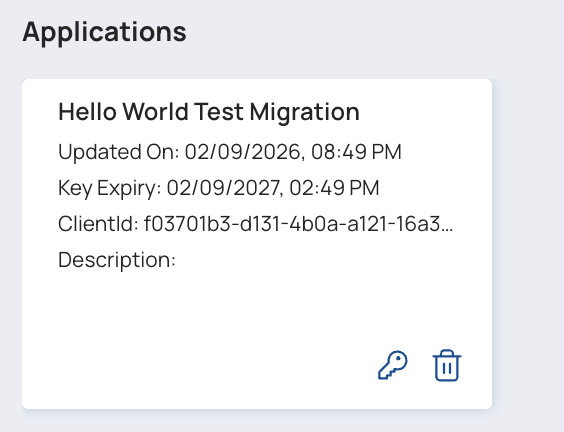
The following procedures will work with any Classic APIM API Version or Proxy to which you have subscribed.
To migrate the API Version:
- From the left navigation pane in API Management 3.0, open the Migration Tool.
- Select the API Version to migrate.
- Click Next.
- Select the target location for the new Service.
- Optionally, deselect specific assets that you don't want to migrate.
Important: Any deselected tasks don't have corresponding Service endpoints created.
- Leave the Migrate policies toggle enabled.
- Click Next and review your selections.
- Click Migrate. Migration can take from a few seconds to several minutes, depending on the number of assets migrated.
After migration finishes, verify the subscription settings and publish the new Service:
- In the Services Catalog, navigate to the project folder created for the new Service.
- Expand it and click the Service Version to open its details.
- Click the Subscriptions tab and verify that the original subscription exists. It will use an API key for authentication and have a time-to-live of 365 days.
- To the left of the Service name, click Unpublished and select Public.
Test the subscription for the new Service endpoint with the original API key:
- Copy the original API key:
- From the waffle menu, select the Classic APIM Developer Portal.
- Open the Application subscribed to the API Version.
- Click the API key to copy it to the clipboard.
- From the waffle menu, select the APIM 3.0 Developer Portal link.
- Locate the Service migrated from the API Version.
- Click the Service card or table row to open the Service details.
- Click the endpoint to show its details.
- Click Authorize.
- Paste the API key.
- Click Authorize.
- Click the X to dismiss the Authorize dialog.
- Click Try it out.
- Click Execute.
- Verify that the response displays successfully.
If you encounter issues, try the following:
- Re-copy the API key from the Classic Developer Portal Application and try again.
- Unpublish the migrated Service and try the API key with the API Version or Proxy in Classic APIM.
- Verify that the Application with the subscription exists in the APIM 3.0 Developer Portal.
- Republish the migrated Service and try calling the APIM 3.0 Service endpoint with Postman or a similar tool.