


Databricks Account
Overview
- Amazon S3
- Azure Blob Storage
- Azure Data Lake Storage Gen2
- DBFS
- Google Cloud Storage
- JDBC
Behavior changes
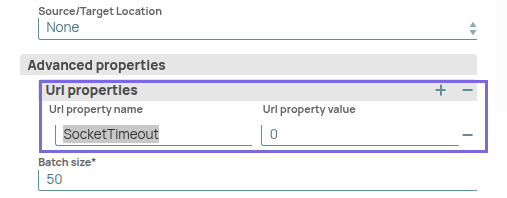
Starting from May 2025 main31019 Snap Pack version, if you are using the
bundled Databricks driver (2.6.40), you might encounter a socket timeout error.
Workaround: Set the SocketTimeout value to 0 in
the account URL properties field set of the Databricks Account.
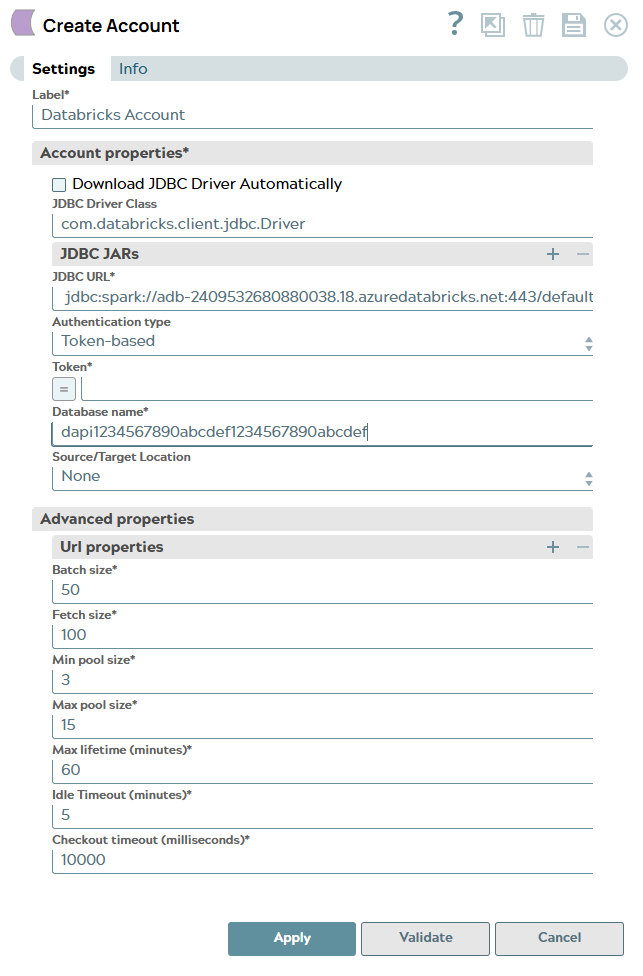
Account settings
- Expression icon (
 ): Allows using
JavaScript syntax to access SnapLogic Expressions to set field values dynamically (if
enabled). If disabled, you can provide a static value. Learn more.
): Allows using
JavaScript syntax to access SnapLogic Expressions to set field values dynamically (if
enabled). If disabled, you can provide a static value. Learn more. - SnapGPT (
 ): Generates SnapLogic Expressions
based on natural language using SnapGPT. Learn
more.
): Generates SnapLogic Expressions
based on natural language using SnapGPT. Learn
more. - Suggestion icon (
 ): Populates a
list of values dynamically based on your Snap configuration. You can select only one
attribute at a time using the icon. Type into the field if it supports a comma-separated
list of values.
): Populates a
list of values dynamically based on your Snap configuration. You can select only one
attribute at a time using the icon. Type into the field if it supports a comma-separated
list of values. - Upload
 : Uploads files. Learn more.
| Field/Field set | Type | Description |
|---|---|---|
| Label
|
String |
Required.Specify a unique label for the account. Default value: N/A Example: STD DB Acc DeltaLake AWS ALD |
| Account Properties | Use this field set to configure the information required to establish a JDBC connection with the account. | |
| Download JDBC Driver Automatically | Checkbox | Select this checkbox to allow the Snap account to download the certified JDBC
Driver for DLP. The following fields are disabled when this checkbox is selected:
We recommend that you use the bundled JAR file version
( databricks-jdbc-2.6.40) in your pipelines. However, you may
choose to use a custom JAR file version. To use a custom JDBC Driver:
Note: You can use a different JAR file version other than the list of JAR file
versions. Note: Spark JDBC and Databricks JDBC If you do
not select this checkbox and use an older JDBC JAR file (older than version
2.6.40), ensure that you use:
Default status: Deselected |
| JDBC URL | String | Required. Enter the JDBC driver connection string that
you want to use in the syntax provided below, for connecting to your DLP instance.
Learn more in Microsoft's JDBC and ODBC drivers and configuration
parameters. jdbc:spark://dbc-ede87531-a2ce.cloud.databricks.com:443/default;transportMode=http;ssl=1;httpPath=sql/protocolv1/o/6968995337014351/0521-394181-guess934;AuthMech=3;UID=token;PWD=<personal-access-token> Note:
Avoid passing a Password inside the JDBC URL If you specify the password inside the JDBC URL, it is saved as it is and is not encrypted. Instead, we recommend using the provided Password field to ensure that your password is encrypted. Default value: N/A Example: |
| Authentication type | Dropdown list | Choose the authentication type to use. Available options are:
Default value: Token authentication Example: M2M authentication |
| Token | String/Expression | Appears when you select Token-based as the Authentication type. Required. Specify the token for Databricks Lakehouse Platform authentication.Default value: N/A Example: dapi1234567890abcdef1234567890abcdef |
| Username | String | Appears when you select Password as the Authentication type. Specify the username that is allowed to connect to the database. The username will be used as the default username when retrieving connections. The username must be valid to set up the data source. Default value: N/A Example: snapuser |
| Password | String | Appears when you select Password as the authentication type. Specify the password used to connect to the data source. The password will be used as the default password when retrieving connections. The password must be valid to set up the data source. Default value: N/A Example: <Encrypted> |
| Client ID | String | Appears when you select M2M as the Authentication type. Specify the unique identifier that is assigned to the application when it is registered with the OAuth2 provider. Default value: N/A Example: 12345678-abcd-1234-efgh-56789abcdef0 |
| Client secret | String | Appears when you select M2M as the Authentication type. Specify the confidential key assigned to the application with the Client ID. Default value: N/A Example: ABCD1234abcd5678EFGHijkl9012MNOP |
| Database name | String | Required. Enter the name of the database to use by
default. This database is used if you do not specify one in the Databricks Select or
Databricks Insert Snaps. Default value: N/A Example: Default |
| Source/Target Location | Dropdown list | Select the source or target data warehouse into which the queries must be
loaded. The available options are:
Learn more about settings specific to each data warehouse: Source/Target location |
| Advanced Properties | ||
| URL properties | Use this field set to define the account parameter's name and its corresponding value. Click + to add the parameters and the corresponding values. Add each URL property-value pair in a separate row. | |
| URL property name | String | Specify the name of the parameter for the URL property. Default value: N/A Example: queryTimeout |
| URL property value | String | Specify the value for the URL property parameter. Default value: N/A Example: 0 |
| Batch size | Integer | Required. Specify the number of queries that you want to
execute at a time.
Default value: N/A Example: 3 |
| Fetch size | Integer |
Required. Specify the number of rows a query must fetch for each execution. Larger values could cause the server to run out of memory. Default value: 100 Example: 12 |
| Min pool size | Integer | Required. Specify the minimum number of idle connections
that you want the pool to maintain at a time. Default value: 3 Example: 0 |
| Max pool size | Integer | Required. Specify the maximum number of connections that
you want the pool to maintain at a time. Default value: 15 Example: 0 |
| Max life time | Integer | Required. Specify the maximum lifetime of a connection
in the pool, in seconds:
Minimum value: 0 Maximum value No limit |
| Idle Timeout | Integer | Required. Specify the maximum amount of time in seconds
that a connection is allowed to sit idle in the pool. 0 (zero) indicates that idle connections are never removed from the pool. Minimum value: 0 Maximum value No limit |
 icon.
icon.Troubleshooting
| Error | Reason | Resolution |
|---|---|---|
| Socket Timeouterror when connecting to Databricks. | With v2.6.35of the Databricks JDBC
driver, a new feature [SPARKJ-688] was introduced in the connector that turns on
the socket timeout by default for HTTP connections. The default socket timeout is
set to 30 seconds. If the server does not respond within 30 seconds, a
SocketTimeoutException is displayed. |
Set the SocketTimeout value to 0 in the
account URL properties field set of the Databricks Account. |