


Source/Target location
ADSL Gen2
If you select Azure Data Lake Storage Gen2 as the target data warehouse, the account displays the following fields:
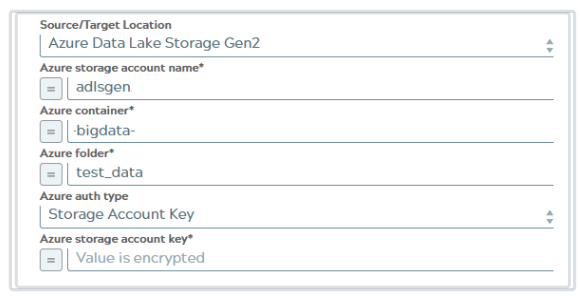
| Field/ Field set | Type | Description |
|---|---|---|
| Azure storage account name | Dropdown list | Required. Enter the name with which Azure Storage was
created. The Bulk Load Snap automatically appends the '.blob.core.windows.net'
domain to the value of this property. Default value: N/A Example: testblob |
| Azure Container | String/Expression | Required.
Enter the name of an existing Azure container. Default value: N/A Example: sl-bigdata-qa |
| Azure folder | String/Expression | Required.
Enter the name of an existing Azure folder in the container to be used for hosting files. Default value: N/A Example: test-data |
| Azure Auth Type | Dropdown list |
Select the authorization type to use while setting up the account. Options available are:
Default value: Shared Access Signature Example: Shared Access Signature |
| Azure storage account key | String/Expression |
Appears when Azure Auth Type is Storage account key. Required. Enter the access key ID associated with your Azure storage account. Default value: N/A Example: ABCDEFGHIJKL1MNOPQRS |
| SAS Token | String/Expression |
Appears when Azure Auth Type is Shared Access Signature. Required.Enter the SAS token, which is the part of the SAS URI associated with your Azure storage account. Learn more: Getting Started with SAS. Default value: N/A Example: ?sv=2020-08-05&st=2020-08-29T22%3A18%3A26Z&se=2020-08-30T02%3A23%3A26Z&sr=b&sp=rw&sip=198.1.2.60-198.1.2.70&spr=https&sig=A%1DEFGH1Ijk2Lm3noI3OlWTjEg2tYkboXr1P9ZUXDtkk%3D |
Azure Blob Storage
If you select Azure Blob Storage as the target data warehouse, the account displays the following fields:
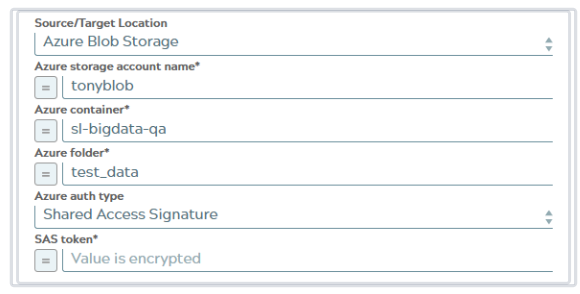
| Field/ Field set | Type | Description |
|---|---|---|
| Azure storage account name | Dropdown list | Required. Enter the name with which Azure Storage was
created. The Bulk Load Snap automatically appends the
'.blob.core.windows.net' domain to the value of this property. Default value: N/A Example: testblob |
| Azure Container | String/Expression | Required. Enter the name of an existing Azure
container. Default value: N/A Example: sl-bigdata-qa |
| Azure folder | String/Expression | Required. Enter the name of an existing Azure folder
in the container to be used for hosting files. Default value: N/A Example: test-data |
| Azure Auth Type | Dropdown list |
Select the authorization type that you want to consider when setting up the account. Options available are:
Default value: Shared Access Signature Example: Shared Access Signature |
| SAS Token | String/Expression |
Appears when Azure Auth Type is Shared Access Signature. Required. Enter the SAS token which is the part of the SAS URI associated with your Azure storage account. Learn more in Getting Started with SAS. Default value: N/A Example: ?sv=2020-08-05&st=2020-08-29T22%3A18%3A26Z&se=2020-08-30T02%3A23%3A26Z&sr=b&sp=rw&sip=198.1.2.60-198.1.2.70&spr=https&sig=A%1DEFGH1Ijk2Lm3noI3OlWTjEg2tYkboXr1P9ZUXDtkk%3D |
| Azure storage account key | String/Expression |
Appears when Azure Auth Type is Shared Access Signature. Required. Enter the access key ID associated with your Azure storage account. Default value: N/A Example: ABCDEFGHIJKL1MNOPQRS |
AWS S3
If you select AWS S3as the target data warehouse, the account displays the following fields:
| Field/ Field set | Type | Description |
|---|---|---|
| S3 Bucket | String | Required. Specify the relative path to a folder in the
S3 bucket listed in the S3 Bucket field. This is used as a root folder for staging
data to Databricks. Default value: N/A Example: https://sl-bucket-ca.s3.<ca>.amazonaws/<sf> |
| S3 Folder | String | Required. Specify the relative path to a folder in the
S3 bucket listed in the S3 Bucket field. This is used as a root folder for staging
data to Databricks. Default value: N/A Example: https://sl-bucket-ca.s3.<ca>.amazonaws/<sf> |
| Aws Authorization type | Dropdown list | Select the authentication method to use for accessing the source data.
Available options are:
Default value: Source Location Credentials for S3 and Azure, Storage Integration for Google Cloud Storage. Example: Storage Integration |
| S3 Access-key ID | String |
Required. Specify the S3 access key ID that you want to use for AWS authentication. Default value: Default value: N/A Example: 2RGiLmL/6bCujkKLaRuUJHY9uSDEjNYr+ozHRtg |
| S3 Secret Key | String |
Appears when Azure Auth Type is Shared Access Signature. Required. Specify the S3 secret key associated with the S3 Access-ID key listed in the S3 Access-key ID field. Default value: N/A Example: 2RGiLmL/6bCujkKLaRuUJHY9uSDEjNYr+ozHRtg |
| S3 AWS Token | String |
Appears when Source/Target Location Session Credentials is selected in Aws Authorization type. Required. Specify the S3 AWS Token to connect to private and protected Amazon S3 buckets. Tip:
The temporary AWS Token is used when:
Default value: N/A Example: AQoDYXdzEJr |
Google Cloud Storage
If you select Google Cloud Storage as the target location, the account displays the following fields:
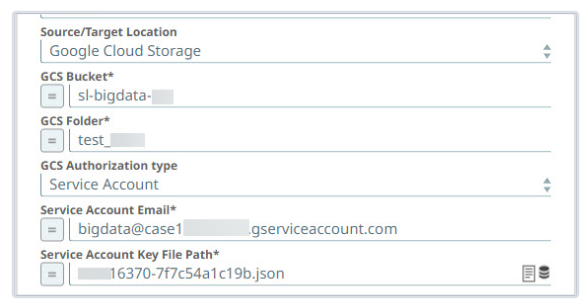
| Field/ Field set | Type | Description |
|---|---|---|
| GCS Bucket | String/Expression | Appears when Google Cloud Storage is selected for Source/Target
Location. Required. Specify the GCS Bucket to use for staging data to be used for loading to the target table. Default value: N/A Example: sl-test-bucket |
| GCS Folder | String/Expression |
Appears when Google Cloud Storage is selected for Source/Target Location. Required. Specify the relative path to a folder in the GCS Bucket. This is used as a root folder for staging data. Default value: N/A Example: test_data |
| GCS Authorization type | Dropdown list | Appears when Google Cloud Storage is selected for Source/Target
Location. Select the authentication type to load data. By default the authentication type is Service Account. Default value: Service Account |
| Service Account Email | String/Expression |
Appears when Google Cloud Storage is selected for Source/Target Location Required. Specify the service account email allowed to connect to the BigQuery database. This will be used as the default username when retrieving connections. The Email must be valid in order to set up the data source. Default value: N/A Example: bigdata@iam.gserviceaccount.com |
| Service Account Key File Path | String/Expression |
Appears when Google Cloud Storage is selected for Source/Target Location. Required. Specify the path to Key file used to authenticate the service account email address with the BigQuery database. Default value: N/A Example: 7f7c54a1c19b.json |
JDBC (Any SQL Database)
If you select JDBC as the target data warehouse, the account displays the following fields:
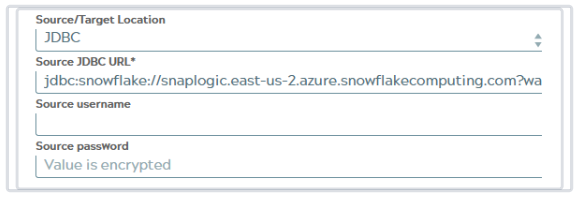
| Field/ Field set | Type | Description |
|---|---|---|
| Source JDBC URL | String | . Required. Specify the JDBC URL of the source table. Default value: N/A Example: jdbc:snowflake://snaplogic.east-us-2.azure.snowflakecomputing.com |
| Source username | String |
Specify the username of the external source database. Default value: N/A Example: db_admin |
| Source password | String |
Specify the password for the external source database. Default value: N/A Example: M#!ikA8_0/&! |
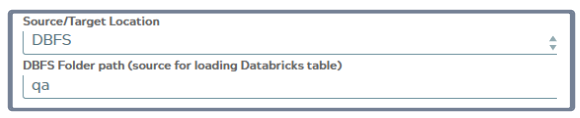
Source: DBFS
If you select the DBFS as the target data warehouse, the account displays the DBFS Folder path (source for loading Databricks table) field.
| Field/ Field set | Type | Description |
|---|---|---|
| DBFS Folder path (source for loading Databricks table) | String | . Enter the folder path for the source files to be loaded from. The path must begin with a forward slash /. Default value: N/A Example: /data_folder/path |