


File Operation
Overview
You can use this Snap to perform a file operation (move/copy/rename) for a file from source to target in the same server. The supported file protocols are: local file (file:///), FTP, SFTP, S3, WASB, and WASBS. The File Operation Snap performs extract and load operations on the input file or folder.
You must install the AzCopy utility, if you use the ABFS (Azure Blob File Storage) file protocol Azure Data Lake Gen 2 for bulk operation. The utility must be installed in Snaplex to fetch the file path. If the path is null, the native Azure Storage SDK is used for all operations. Learn more about the AzCopy command. If AzCopy Utility is not installed for ABS file transfer, the file transfer will not be as fast as using AzCopy because a REST call will be invoked for each file content instead of a bulk operation.
The SnapLogic Platform does not support the installation of utilities or processes on Cloudplexes. Learn more.
Learn more: Migrate from Binary to S3 Snaps.
- This is a Write-type Snap.
 Works in Ultra Tasks
Prerequisites
- The provided account must have 'write' access to the specified directory and file in order to perform the file operation successfully.
- IAM Roles for Amazon EC2,
IAM Roles for Amazon EC2
The 'IAM_CREDENTIAL_FOR_S3' feature is used to access S3 files from EC2 Groundplex, without
Access-key ID and Secret key in the AWS S3 account in the Snap. The IAM credential stored in
the EC2 metadata is used to gain access rights to the S3 buckets. To enable this feature,
set the Global properties (Key-Value parameters) and restart the JCC:jcc.jvm_options
= -DIAM_CREDENTIAL_FOR_S3=TRUE
This feature is supported in the EC2-type Groundplex only. Learn more.
Limitations
-
The Snap can move, rename, or copy a file within the same file server, but not across file servers.
-
The Snap can move or copy S3 files across buckets within the same region, but not across regions.
Known issues
- This Snap does not support using the ABFS protocol with a Windows-based Snaplex.
- When you use special characters, such asðø©¢¾A²½µ®÷¶þ~ for Source and Target
directory and filenames, this Snap fails and results in the following error as the
special characters are not supported.
Error: Illegal character in fragment at index 71: bfs://bigdataqa@bigdataqassl.dfs.core.windows.net/simplechar/owner!@#$^&()_¢äâêîôûñç¡¿ÉÙËǨ°¸ðø©¢¾A²½µ®§÷¶þ~.json - The format:
abfs(s)://filesystem@accountname.endpoint/<path>for file path for Source and Target fields does not work as this URL syntax is not supported. The file protocol must begin withabfs(s):///,else the container, account name, and endpoint are interpolated into the URL at runtime, which results in the following error.Error: Unsupported protocol or URL syntax error in abfs(s)://filesystem@accountname.endpoint/<path>,Workaround: Use the supported file protocol and correct URL syntax.
-
This Snap Pack no longer natively supports RSA-SHA1 authentication with the Secure File Transfer Protocol (SFTP). To enable support for RSA-SHA1 authentication, set the following property from the Node Properties section of Configuration Options :
-
Djsch.server_host_key=ssh-rsa
            -Djsch.client_pubkey=ssh-rsa
With the 4.33 GA release of the Binary Snap Pack , support for some algorithms for SFTP connection negotiation is removed for improved security and because we’ve updated the library used to connect to SFTP sources. If you want to revert to the previous settings, you can set the following
jcc.jvm_optionsfrom the Node Properties section Configuration Options. To update Cloudplexes, contact SnapLogic Support.-Djsch.kex=ecdh-sha2-nistp256,ecdh-sha2-nistp384,ecdh-sha2-nistp521,diffie-hellman-group14-sha1,diffie-hellman-group-exchange-sha256,diffie-hellman-group-exchange-sha1,diffie-hellman-group1-sha1-Djsch.server_host_key=ssh-rsa,ssh-dss,ecdsa-sha2-nistp256,ecdsa-sha2-nistp384,ecdsa-sha2-nistp521-Djsch.client_pubkey=ssh-rsa,ssh-dss,ecdsa-sha2-nistp256,ecdsa-sha2-nistp384,ecdsa-sha2-nistp521-Djsch.cipher=aes128-ctr,aes128-cbc,3des-ctr,3des-cbc,blowfish-cbc,aes192-ctr,aes192-cbc,aes256-ctr,aes256-cbc-Djsch.check_ciphers=aes256-ctr,aes192-ctr,aes128-ctr,aes256-cbc,aes192-cbc,aes128-cbc,3des-ctr,arcfour,arcfour128,arcfour256-Djsch.check_kexes=diffie-hellman-group14-sha1,ecdh-sha2-nistp256,ecdh-sha2-nistp384,ecdh-sha2-nistp521-Djsch.check_signatures=ecdsa-sha2-nistp256,ecdsa-sha2-nistp384,ecdsa-sha2-nistp521 -
Snap views
| Type | Description | Examples of upstream and downstream Snaps |
|---|---|---|
| Input | Any document with key-value pairs to evaluate expression properties in the File Operator Snap can be used, where each input document will cause one complete execution of the Snap. | |
| Output | A typical output from this Snap is a document with column headers, such as
Source, Target, and Status (Moved or Copied). |
|
| Learn more about Error handling. | ||
Snap settings
- Expression icon (
 ): Allows using
pipeline parameters to set field values dynamically (if enabled). SnapLogic Expressions
are not supported. If disabled, you can provide a static value.
): Allows using
pipeline parameters to set field values dynamically (if enabled). SnapLogic Expressions
are not supported. If disabled, you can provide a static value. - SnapGPT (
 ): Generates SnapLogic Expressions
based on natural language using SnapGPT. Learn
more.
): Generates SnapLogic Expressions
based on natural language using SnapGPT. Learn
more. - Suggestion icon (
 ): Populates a
list of values dynamically based on your Snap configuration. You can select only one
attribute at a time using the icon. Type into the field if it supports a comma-separated
list of values.
): Populates a
list of values dynamically based on your Snap configuration. You can select only one
attribute at a time using the icon. Type into the field if it supports a comma-separated
list of values. - Upload
 : Uploads files. Learn more.
| Field/Field set | Type | Description |
|---|---|---|
Label
|
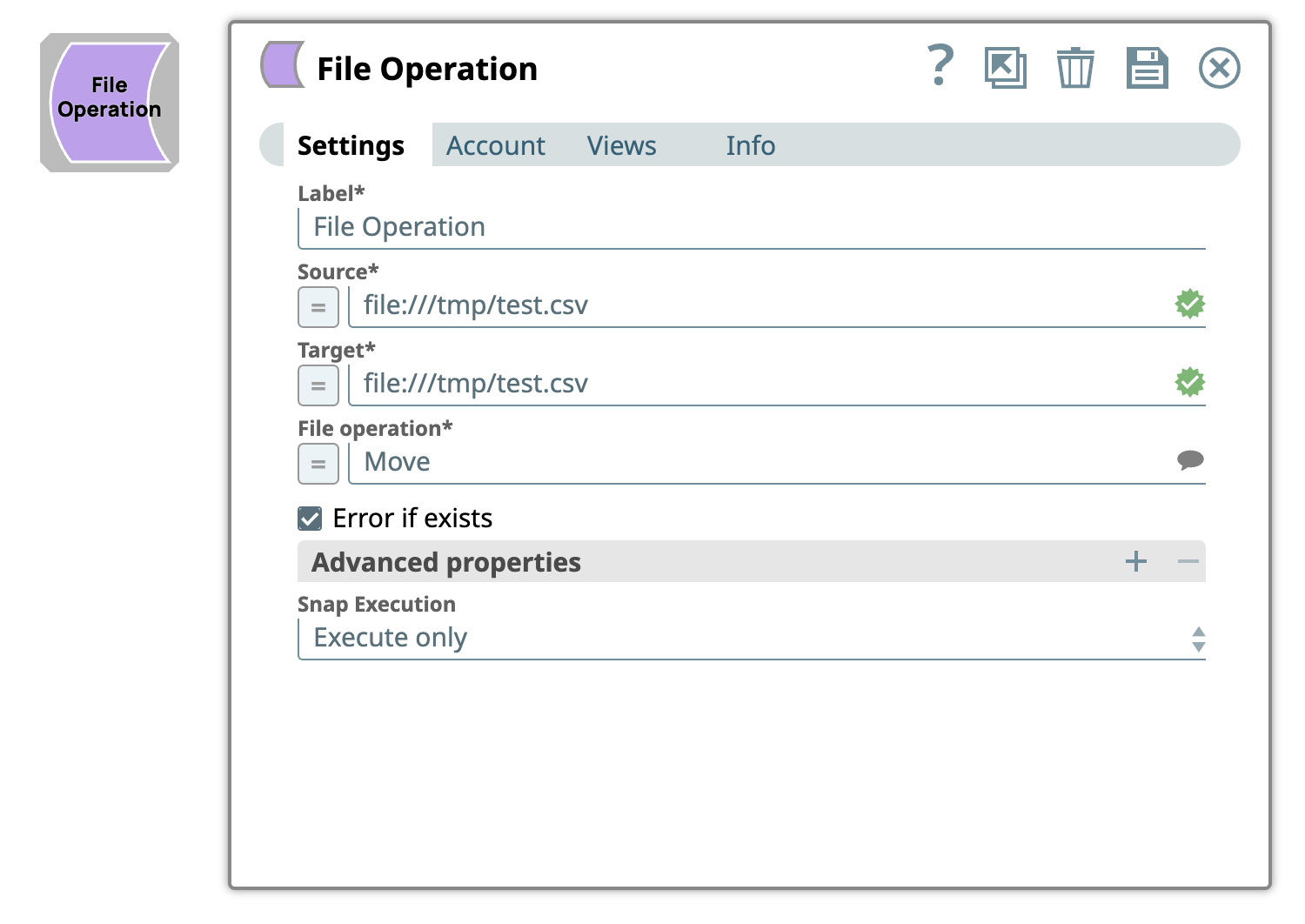
String | Required. Specify a unique name for the Snap. Modify this to be more appropriate, especially if more than one of the same Snaps is in the pipeline. Default value: File Operation Example: File Operation |
| Source | String/Expression | Required. Specify the URL for the source, where the
binary data is read from. This Snap also supports S3 Virtual Private Cloud (VPC)
endpoint. For example,
s3://my-bucket@bucket.vpce-028b7814794578709-vu0vvauy.s3.us-west-2.vpce.amazonaws.com Example
of Source as an expression: This property should have
the syntax: You can also copy or move the file from your local system to Azure blob container for better performance. Warning: When using expressions to build a file
name, ensure that the resulting file name does not contain characters that are not
supported by the target platform. Warning: Amazon AWS S3 SDK Limitation - File operations
Default value: None. Example:
|
| Target | String/Expression |
Required. This property specifies the URL of the destination where the selected file operation must be performed. This Snap also supports S3 Virtual Private Cloud (VPC) endpoint. For example, s3://my-bucket@bucket.vpce-028b7814794578709-vu0vvauy.s3.us-west-2.vpce.amazonaws.com Warning: Amazon AWS S3 SDK Limitation - File operations
Default value: None. Example:
|
| File Operation | String/Expression/ Suggestion |
Required. Enter or select the operation you want the Snap
to perform on the file. Available options are:
Tip: This Snap supports Azure Data Lake Storage (ADLS) Gen 2
Storage and ADLS Gen 2 Storage (ABFS) protocol for moving and copying files in
the Azure Blob File System (ABFS). Warning: Rename is
handled the same as Move. The source URL and target URL are the same,
with the exception of the file name. Default value: Move Example:
|
| Error if exists | Checkbox | If enabled, the Snap displays an error when the target exists. If disabled, the
Snap replaces or overwrites the target with the source. Default status: Selected |
| Advanced properties | Use this field set to customize or control the Snap's validation and execution mechanism. | |
| Properties | Dropdown list | The available options are:
The URI of the Shared Access Storage (SAS) to be accessed. Supported SAS
types are:
Tip: If the SAS URI value is provided in the Snap settings,
then the settings provided in the account (if any account is attached) are
ignored.
Note: If Simple file operation is set to true,
You can also copy or move the file from your local system to Azure blob container for better performance. Warning: This field is applicable
only if you are using Azure Storage account for this Snap. Tip:
Default value: SAS URI Example: Simple file operation |
| Values | String/Expression | Specify a value for the above property. Default value: None. |
| Snap execution
|
Dropdown list |
Choose one of the three modes in
which the Snap executes. Available options are:
Default value: Execute only Example: Validate & Execute |