


PGP Sign
Overview
This Snap enables you to use PGP to sign a file digitally without encrypting the file.
Pretty Good Privacy (PGP) is a decryption program that provides cryptographic privacy and authentication for data communication. PGP is popularly used to digitally sign, encrypt, or decrypt email messages or files being transferred over the Internet.
- This is a Transform-type Snap.
 Works in Ultra Tasks
Prerequisites
This Snap requires an existing valid PGP Private Key account.
This Snap uses account references created on the Accounts page of SnapLogic Manager called the PGP Public Key Account that stores the public key used for encryption. See Configuring Binary accounts for information on setting up this type of account.
When setting up the account, enter your public PGP key. The credentials setup will automatically encrypt the message.
For signed encryption, this Snap uses account references created on the Accounts page of SnapLogic Manager called the PGP Private Key Account that stores the public and private key used for signed encryption. See Configuring Binary accounts for information on setting up this type of account.
When setting up the PGP Private Key account, enter your public and private PGP keys. The credentials setup will automatically encrypt and sign the message.
Limitations and known issues
The Snap might fail while processing very large signed files.
Snap views
| Type | Description | Examples of upstream and downstream Snaps |
|---|---|---|
| Input | This Snap has exactly one binary input view. Each input document contains file to be the signed. Upstream Snaps can be any Snap that produces binary data in the output view, such as File Writer or Decompress. |
|
| Output | This Snap has exactly one binary output view. Each output document contains the signature file or the signed, compressed file. Downstream Snaps can be any Snap that accepts binary data in the input view, such as File Writer or Decompress. |
|
| Learn more about Error handling. | ||
Snap settings
- Expression icon (
 ): Allows using
pipeline parameters to set field values dynamically (if enabled). SnapLogic Expressions
are not supported. If disabled, you can provide a static value.
): Allows using
pipeline parameters to set field values dynamically (if enabled). SnapLogic Expressions
are not supported. If disabled, you can provide a static value. - SnapGPT (
 ): Generates SnapLogic Expressions
based on natural language using SnapGPT. Learn
more.
): Generates SnapLogic Expressions
based on natural language using SnapGPT. Learn
more. - Suggestion icon (
 ): Populates a
list of values dynamically based on your Snap configuration. You can select only one
attribute at a time using the icon. Type into the field if it supports a comma-separated
list of values.
): Populates a
list of values dynamically based on your Snap configuration. You can select only one
attribute at a time using the icon. Type into the field if it supports a comma-separated
list of values. - Upload
 : Uploads files. Learn more.
| Field/Field set | Type | Description |
|---|---|---|
Label
|
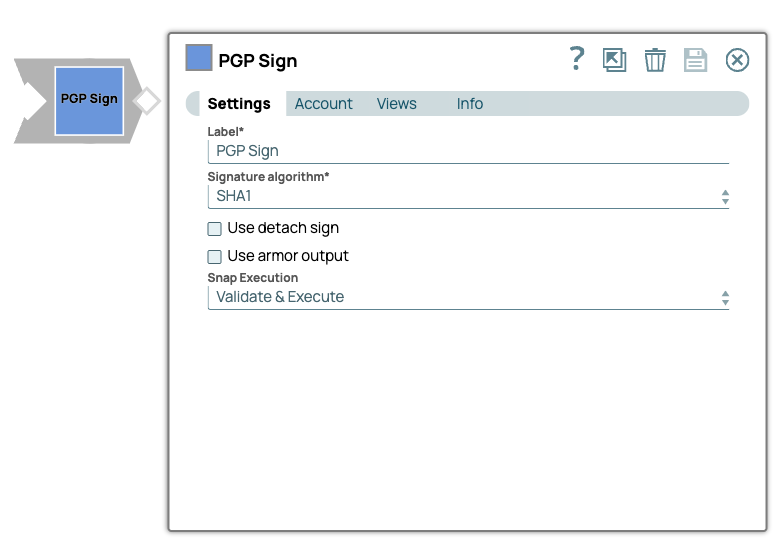
String | Required. Specify a unique name for the Snap. Modify this to be more appropriate, especially if more than one of the same Snaps is in the pipeline. Default value: PGP Sign Example: PGP Sign - MyDoc |
| Signature Algorithm | Dropdown list | Required. Specify the algorithm to use for the
signature. This is the signature algorithm that is used for the actual signature that is being made. Most systems default to SHA1, but other SHA algorithms can be used. Default value: SHA1 Example: SHA224 |
| Use detach sign | Checkbox | When selected, the Snap provides only the detached signature of the signing
process. This is the equivalent of running with --detach-sign using
the gpg utility. When unselected, it is the equivalent of running
with --sign using the gpg utility.Rather than having the compressed input data and signature in a single binary document, this option provides only the signature of the file as the only output. If you need access to the raw input binary file, use a Binary Copy Snap prior to the PGP Sign Snap and leave this checkbox unselected. Default status: Deselected |
| Use armor output | Checkbox | When selected, the output is base64-encoded with a header and footer rather
than the binary data. This is the equivalent of running the GnuPG
Default status: Deselected |
| Snap execution
|
Dropdown list |
Choose one of the three modes in
which the Snap executes. Available options are:
Default value: Execute only Example: Validate & Execute |
Troubleshooting
| Error | Reason | Resolution |
|---|---|---|
| Unable to create signed file | Error reading the key/input data passed | Please verify the key/input data passed |
| No valid signing key in provided private key | The key might be expired signing keys or the key pass phrase is not correct | Please verify that the provided private key has non-expired signing keys and that the password is correct |