


Project spaces and projects
Introduction to Projects
The lower section of the Project Manager navigation pane displays a tree of project spaces and projects. Project spaces contain projects, which store SnapLogic assets, including accounts, files, tasks, pipelines, Snap Packs, Snaplexes, Services, Policies, and tables. To create projects and manage project assets, you must be an Environment admin or have write access. Only the project owner or an Environment admin can assign project permissions.
View project assets
To view project assets in Project Manager, expand a project space in the left navigation tree.
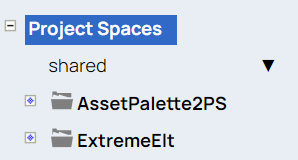
Select a project or shared folder to display the assets it contains in a table. The table has tabs to filter assets by types as shown below. Use search to locate specific assets.
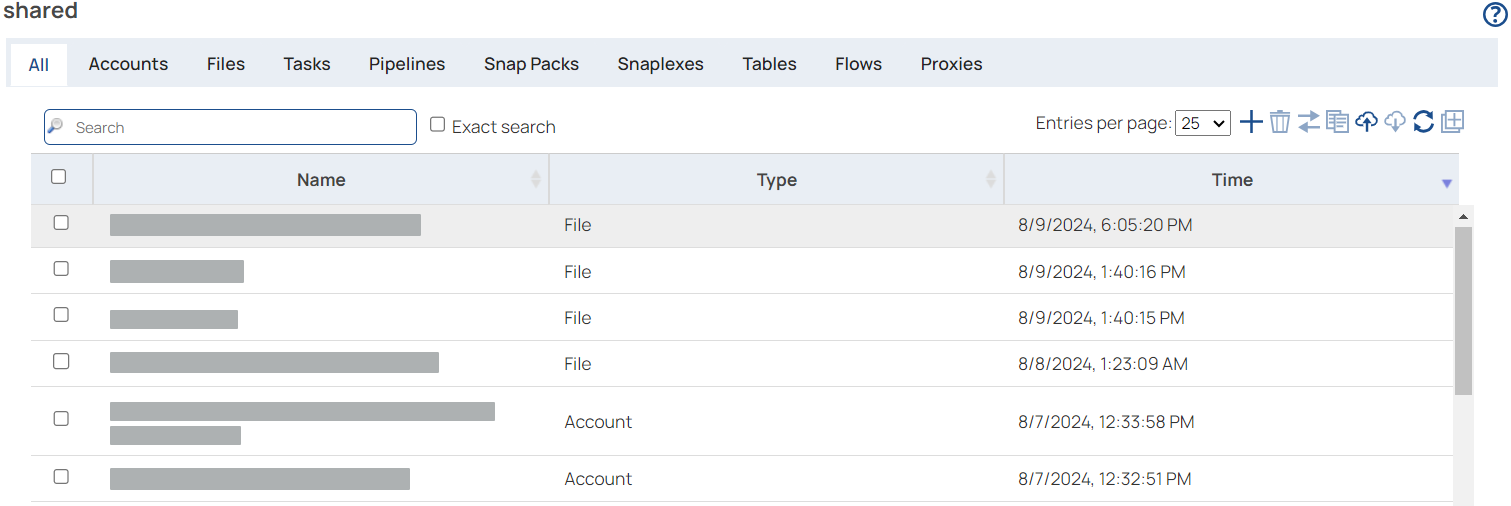
Toolbar
The asset toolbar provides various functions, including executing selected pipelines, creating, deleting, moving, copying, refreshing assets, and viewing versions of pipelines. Some buttons are enabled only when one or more assets are selected.

Select one or more assets to perform an action on them. From left to right, the buttons provide the following functionality:
- Create: Creates an asset of the type shown in the selected tab.
- Delete: Deletes the selected assets. In most cases, they move to the Recycle Bin.
- Move: Moves the selected assets to a project space or project.
- Copy: Copies the selected assets to a target environment (Org), project (project space), or folder (project).
- Import: Imports a .zip, .json, or expression library file.
- Export: Exports the selected assets to the default download location.
- Refresh: Refreshes the asset table.
- Versions: Shows the pipeline version. Only works for one selected pipeline at a time.
Project space context menu
Access the project space context menu by hovering on it and clicking the arrow. The available options depend on your permissions and the features enabled for the environment.
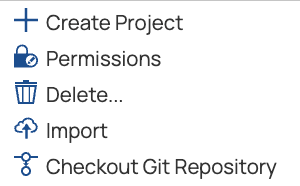
Common options include:
- Create Project: Create a new project in this project space.
- Permissions: Set project space permissions.
- Delete: Delete the project, with recovery options from the Recycle Bin.
- Import: Import projects from a .zip file.
- Checkout Git Repository: For environments with the Git Integration, populate the project space with assets from a Git repository.
Project context menu
Access the context menu by clicking the arrow next to the project name. The available options depend on your permissions and the features enabled for the environment. Common options include:
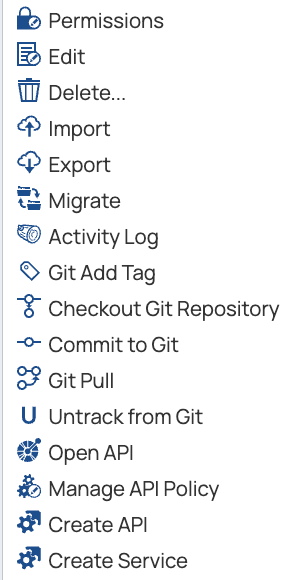
- Permissions: Set project permissions.
- Edit: Edit the project Name or specify it as a Pattern project.
- Delete: Delete the project, with recovery options from the Recycle Bin.
- Export: Export a project to a .zip file.
- Migrate: Migrate a project to another environment.
- Activity Log: View logs by type, track changes to user accounts and assets.
- Checkout GitHub Repository: Check out the GitHub repository associated with the project (for environments using Git Integration).
- Open API: Download Ultra Tasks and Triggered Tasks as REST APIs in .yaml format, viewable in Swagger.
- Manage API Policy: Set the API policy for the project.
- Create API: Create an API from the project.