


Kafka MSK IAM Account
Overview
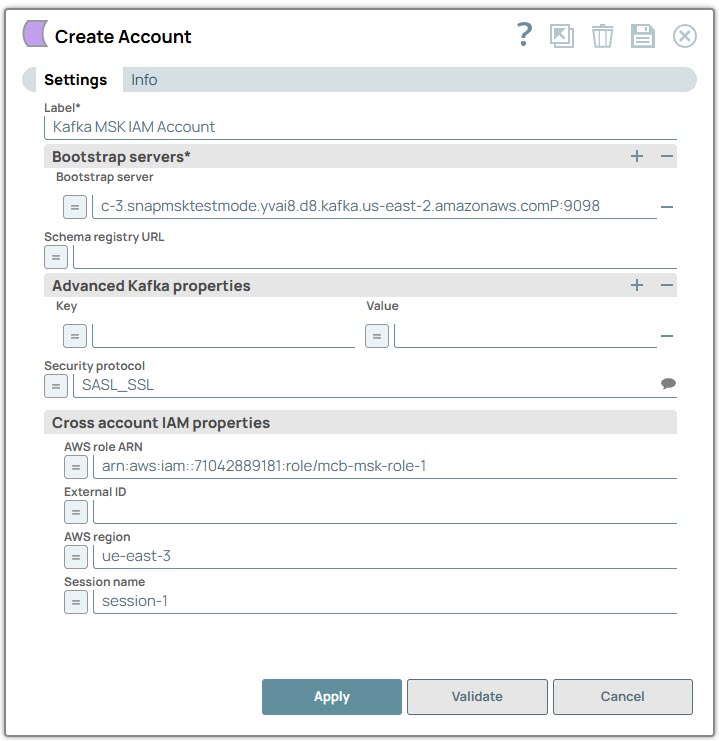
You can use this account type to connect Kafka Snaps with data sources that use the Kafka MSK IAM Account.
Prerequisites
- IAM access
Account settings
- Expression icon (
 ): Allows using
JavaScript syntax to access SnapLogic Expressions to set field values dynamically (if
enabled). If disabled, you can provide a static value. Learn more.
): Allows using
JavaScript syntax to access SnapLogic Expressions to set field values dynamically (if
enabled). If disabled, you can provide a static value. Learn more. - SnapGPT (
 ): Generates SnapLogic Expressions
based on natural language using SnapGPT. Learn
more.
): Generates SnapLogic Expressions
based on natural language using SnapGPT. Learn
more. - Suggestion icon (
 ): Populates a
list of values dynamically based on your Snap configuration. You can select only one
attribute at a time using the icon. Type into the field if it supports a comma-separated
list of values.
): Populates a
list of values dynamically based on your Snap configuration. You can select only one
attribute at a time using the icon. Type into the field if it supports a comma-separated
list of values. - Upload
 : Uploads files. Learn more.
| Field/Field set | Type | Description |
|---|---|---|
| Label | String | Required. Specify a unique label for the account. Default: Kafka MSK IAM Account Example: Kafka_Client_Auth_MSK_IAM |
| Bootstrap servers | Use this field set to specify the ordered list of host-port pairs to establish an initial connection to the Kafka cluster. Click + to add a new row in this table. | |
| Bootstrap server | String/Expression | Specify a host-port pair to establish an initial connection to
the Kafka cluster. Default value: N/A Example: b-1.kafka-cluster-name.abcde.c5.kafka.us-west-2.amazonaws.com:9092 |
| Schema registry URL | String/Expression | Specify the URL for the schema registry server. Default value: N/A Example: http://localhost:8081 |
| Advanced Kafka properties | Use this field set to
specify any additional properties to connect to the Kafka server not
explicitly provided in the Snap. Note: These properties are directly
passed to the Kafka server and are not tested by SnapLogic,
Inc.
|
|
| Key | String/Expression |
Specify the key for any Kafka property that the Snap does not explicitly support.
Default value: N/A Example: session.timeout.ms |
| Value | Integer/Expression |
Specify the value for the Kafka property that the Snap does not explicitly support.
Default value: N/A Example: 10000 |
| Security protocol | String/Expression |
Select one of the following security protocols from the suggestions:
Default value: SASL_SSL Example: SSL |
| Cross account IAM properties | The IAM role must either have sufficient permissions to access the MSK cluster or assume another IAM role with these permissions. If the role has sufficient permissions, then none of the Cross Account IAM fields need to be set. | |
| AWS role ARN | String/Expression |
Specify the ARN of the cross-account IAM role. This ARN defines the permissions and trust policies for assuming the role.
Default value: N/A Example: arn:aws:iam::12345678929:role/snaptest-msk-cluster-read-write-role |
| External ID | String/Expression | Specify the external ID to add an extra layer of security by
preventing “confused deputy” attacks. Note: You must configure this
field when a third party assumes the role. Default value: N/A Example: my-external-id-12345 |
| AWS region | String/Expression | Specify the AWS region where the application is running. Note:
Default value: N/A Example: us-west-2 |
| Session name | String/Expression |
Specify an identifier for the assumed role session. This helps uniquely identify a session when different entities assume the same role.
Default value: N/A Example: kafka-access-session-2024-09-24 |
Error assuming the role with roleArn.
The Role ARN, External ID, or the session duration has incorrect information.
Ensure that the role configuration, ARN, external ID, and session duration are correct, check AWS service status, handle exceptions properly, and contact Customer support if needed.
Debug IAM Permissions
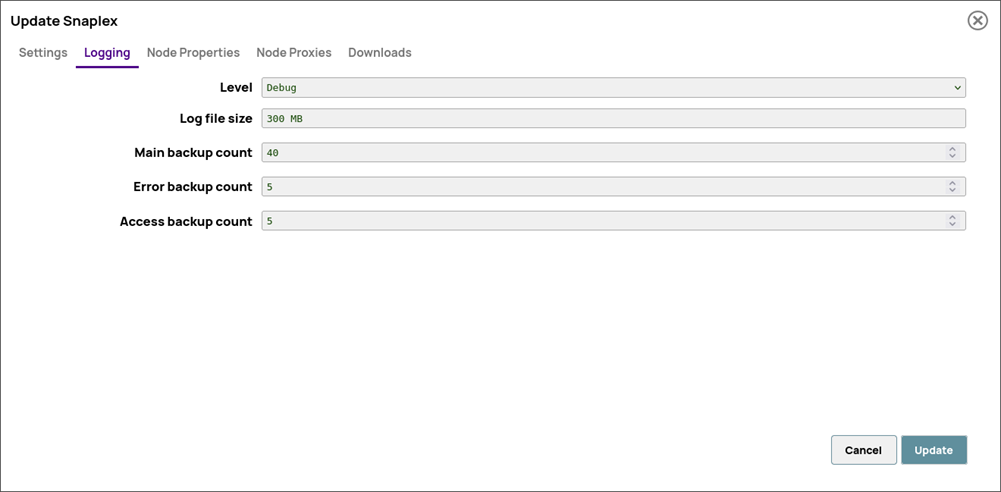
The Kafka MSK IAM Account supports debugging for IAM configuration. To enable IAM debugging, you must update the Snaplex configuration, specifically the logging level, and define a JVM system property. When you enable IAM debugging (Global properties and Logging Level) in the Snaplex configuration, the account logs the IAM credential identity in the Snaplex log.
- On the Logging tab, set the logging level to Debug.
-
On the Node Properties tab, define a Global Property for JVM system properties as shown below or append a value to an existing property.
Key: jcc.jvm_optionsValue: -Daws.msk.iam.debug=true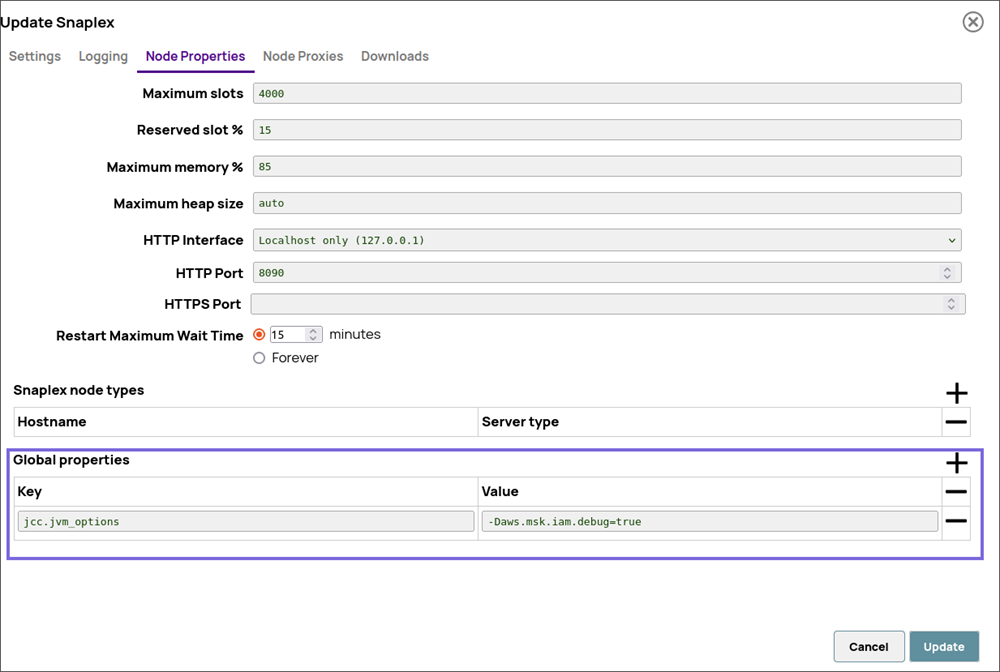
- Restart the Snaplex node.
mcb-msk-role-2 is assigned to an EC2, which can assume
the
IAM role mcb-msk-role-1,