


Google Service Account
Prerequisites
-
Create a Service Account in the Google Cloud console.
- Create a custom role and grant it to the Service account. Add
the following permissions to the custom role (insufficient permissions will fail the Snap):
-
storage.objects.get (Read)
-
storage.objects.list (Read)
-
storage.objects.create (Write)
-
storage.objects.update (Write)
-
storage.objects.delete (Write)
- storage.buckets.list (required for Snap Account Validation)
-
- JSON file containing the public/private key pair. This file is downloaded to your machine when you create the service account. You need to Files it to the SLDB. See Service account keys for more information.
- Click Create, then select Binary, then the appropriate account type.
- Supply an account label.
- Supply the necessary information.
- (Optional) Supply additional information on this account in the Notes field of the Info tab.
- Click Apply.
Account settings
- Expression icon (
 ): Allows using
JavaScript syntax to access SnapLogic Expressions to set field values dynamically (if
enabled). If disabled, you can provide a static value. Learn more.
): Allows using
JavaScript syntax to access SnapLogic Expressions to set field values dynamically (if
enabled). If disabled, you can provide a static value. Learn more. - SnapGPT (
 ): Generates SnapLogic Expressions
based on natural language using SnapGPT. Learn
more.
): Generates SnapLogic Expressions
based on natural language using SnapGPT. Learn
more. - Suggestion icon (
 ): Populates a
list of values dynamically based on your Snap configuration. You can select only one
attribute at a time using the icon. Type into the field if it supports a comma-separated
list of values.
): Populates a
list of values dynamically based on your Snap configuration. You can select only one
attribute at a time using the icon. Type into the field if it supports a comma-separated
list of values. - Upload
 : Uploads files. Learn more.
| Field/Field set | Type | Description |
|---|---|---|
| Label
|
String |
Required.Specify a unique label for the account. Default value: N/A |
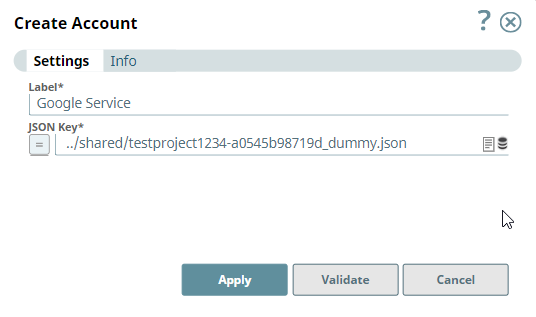
| JSON Key | String/Expression | Required. The relative path of the JSON key in the SLDB.
Warning: The JSON key contains the information regarding the
project ID. This can be used in newer versions of Google Cloud Storage SDK. Note:
Acceptable File Paths
Warning:
Lint Warning The Snap displays a Lint Warning in your Pipeline in the following scenarios:
Default value: N/A Example: ../shared/testproject1234-a0545b98719d_dummy.json |
 Upload icon.
Account encryption
| Standard Encryption | If you are using Standard Encryption, the High sensitivity settings under Enhanced Encryption are followed. |
| Enhanced Encryption | If you have the Enhanced Account Encryption feature, the following describes
which fields are encrypted for each sensitivity level selected per account.
|