APIM Function Generator
Overview
You can use this Snap to convert the APIM service version to the list of functions for the Tool Calling Snap.
- This is a Format-type Snap.
 Works in Ultra Tasks
Prerequisites
None.
Limitations and known issues
None.
Snap views
| Type | Description | Examples of upstream and downstream Snaps |
|---|---|---|
| Input | This Snap supports 0 or 1 document (Default 1). If the input document contains a tools array, the Snap will append the APIM API tools to this array. | |
| Output |
The output contains a list (array) of tools or functions. Each item describes one API or function that can be used. The output schema includes a set of API functions, each with metadata (such as method, URL, security) and a structured definition of what input parameters (query, body, header) they expect. |
|
| Learn more about Error handling. | ||
Snap settings
- Expression icon (
 ): Allows using
JavaScript syntax to access SnapLogic Expressions to set field values dynamically (if
enabled). If disabled, you can provide a static value. Learn more.
): Allows using
JavaScript syntax to access SnapLogic Expressions to set field values dynamically (if
enabled). If disabled, you can provide a static value. Learn more. - SnapGPT (
 ): Generates SnapLogic Expressions
based on natural language using SnapGPT. Learn
more.
): Generates SnapLogic Expressions
based on natural language using SnapGPT. Learn
more. - Suggestion icon (
 ): Populates a
list of values dynamically based on your Snap configuration. You can select only one
attribute at a time using the icon. Type into the field if it supports a comma-separated
list of values.
): Populates a
list of values dynamically based on your Snap configuration. You can select only one
attribute at a time using the icon. Type into the field if it supports a comma-separated
list of values. - Upload
 : Uploads files. Learn more.
| Field/Field set | Type | Description |
|---|---|---|
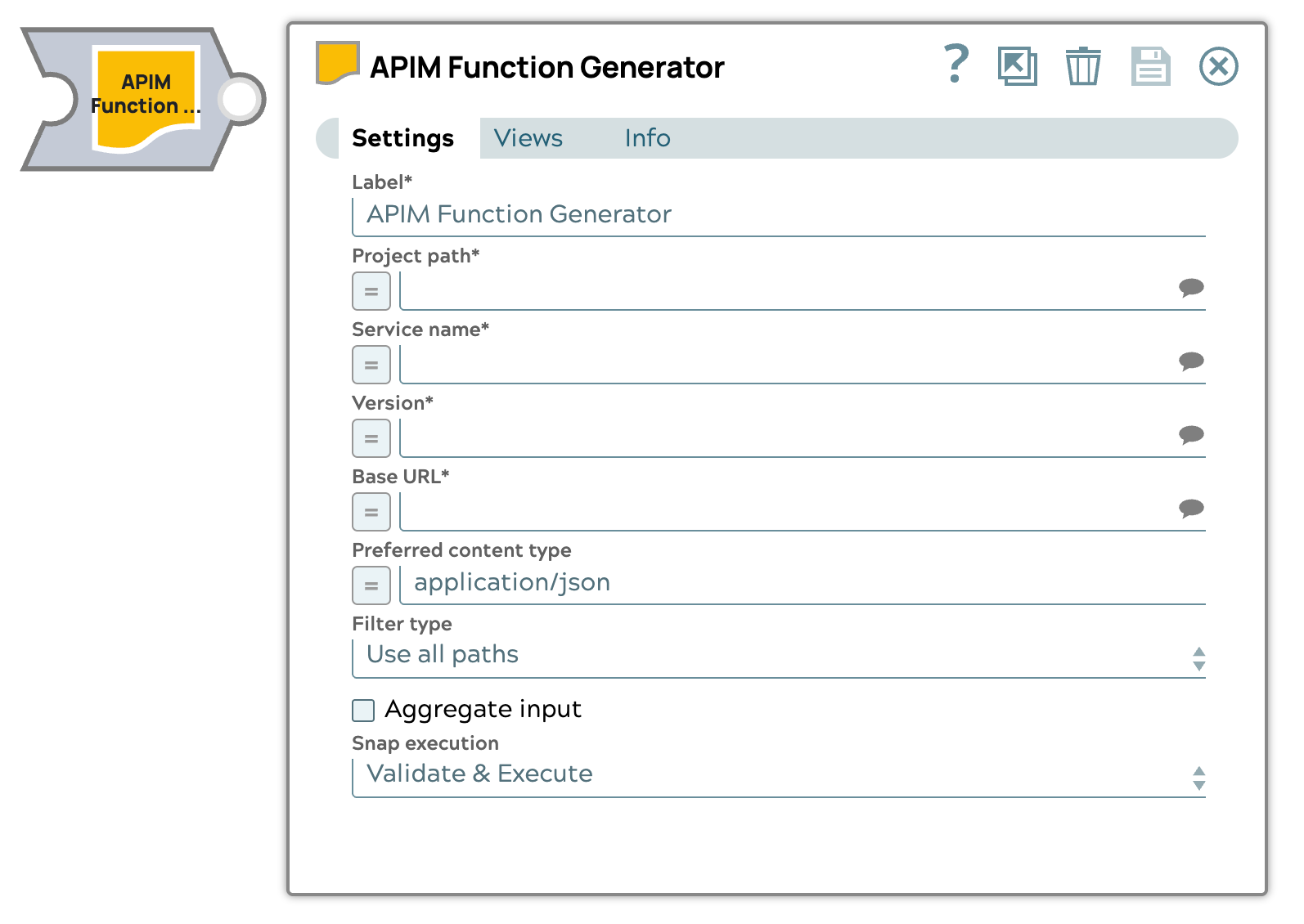
Label
|
String | Required. Specify a unique name for the Snap. Modify this to be more appropriate, especially if more than one of the same Snaps is in the pipeline. APIM Function Generator Example: Generate tool calling service |
| Project path | Expression/Suggestion | Required.Specify the path to the project that contains the APIM service
used to generate the function definition.
Format: Default value: N/A Example: /pet/findByStatus |
| Service name | String/Expression/ Suggestion |
Required.Select the service name from the selected project to convert to functions. The suggestions are listed based on the selected project. Default value: N/A Example: PetStore Test |
|
Version |
String/Expression/ Suggestion |
Required.Select the service version for the service name to convert to functions.. The suggestions are listed based on the selected service name. Default value: N/A Example: v1 |
|
Base URL |
String/Expression/ Suggestion |
Specify the base URL for the APIM service. |
| Preferred content type | String/Expression | Required. Specify the content type in a MIME (Multipurpose Internet Mail Extensions) type format
for the OpenAPI specification. Important: If you do not provide a
content type or if it is not supported, the Snap defaults to the first supported
content type from the specification. Default value: application/json Example: application/yaml |
|
Filter type |
Dropdown list | Choose the filter to apply to the service version: Default value: Use all paths. All service endpoint paths and methods will be converted to functions. |
| Filter tags | Expression/Suggestion |
Specify the tag name to filter for at the endpoint, path, or method level in the function definition Displays only when Filter type is Tags. Note: You can add multiple tags. Null or blank tag will be filtered out from the tags
list to use as a filter. |
| Filter paths and methods | Expression/Suggestion | Specify the path and associated method. All of the specified paths with their associated methods will be included in the tool function list. |
|
Path |
Expression/Suggestion | Specify the path of the filter. You can add multiple paths. Default value: N/A Example: /pet/findByStatus |
|
Method |
Expression/Suggestion | Select the method of the service endpoint path.
Note: If the associated method for the path is not present, the Snap displays an error. Default value: N/A Example: GET |
| Aggregate input | Checkbox/Expression |
Select this checkbox to aggregate the input content into a single output document. When selected, the Snap isn't compatible with Ultra Tasks. Note: This field does not support upstream values.
Default status: Deselected |
| Tool path | String/Expression/ Suggestion | The full path to the tool pipeline. |
| Account path | String/Expression/ Suggestion | The full path to the account for the tool pipeline. |
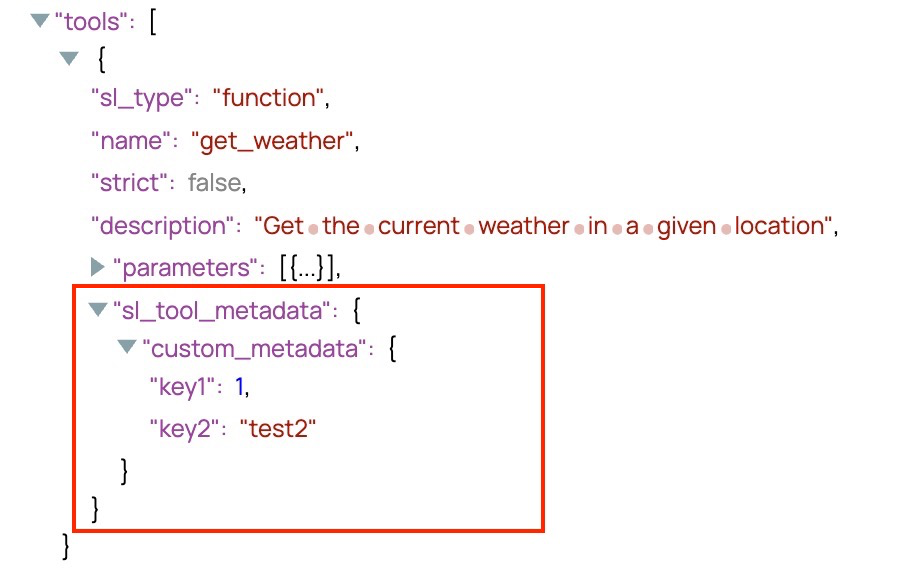
| Custom metadata | The metadata associated with the
function definition. This metadata is user-defined and can be used in subsequent
Snaps, such as the Pipeline Execute Snap, to enable more flexible and contextual execution.
These custom metadata key-value pairs appear under the
|
|
| Key | String/Expression | Specify the key to use for the metadata. If the metadata key is empty, the
Snap displays an error. Default value: N/A Example: key1 |
| Value | String/Expression |
Specify the value to use for the metadata. If the metadata value is empty, no error is displayed, however, appears as null in the output.
Default value: N/A Example: value1 |
| Snap execution
|
Dropdown list |
Choose one of the three modes in
which the Snap executes. Available options are:
Default value: Validate & Execute Example: Execute only |
Custom metadata example
For all Function Generator Snaps, you can define metadata for your tool definitions. The following screenshot provides an example of how the Snap output displays the metadata.