


AWS S3 Account
Overview
You can use the AWS S3 Account to connect the Binary Snaps with data sources that are in AWS S3.
Prerequisites
- Valid permissions based on the Snap and intended operation.
- EC2 instance as a Groundplex. The IAM role is valid only in Groundplex nodes
hosted in the EC2 environment. Learn more about
Configuring an EC2 role for IAM Role in AWS S3 Account
.
JCC with the following global property set:jcc.jvm_options=-DIAM_CREDENTIAL_FOR_S3=TRUE
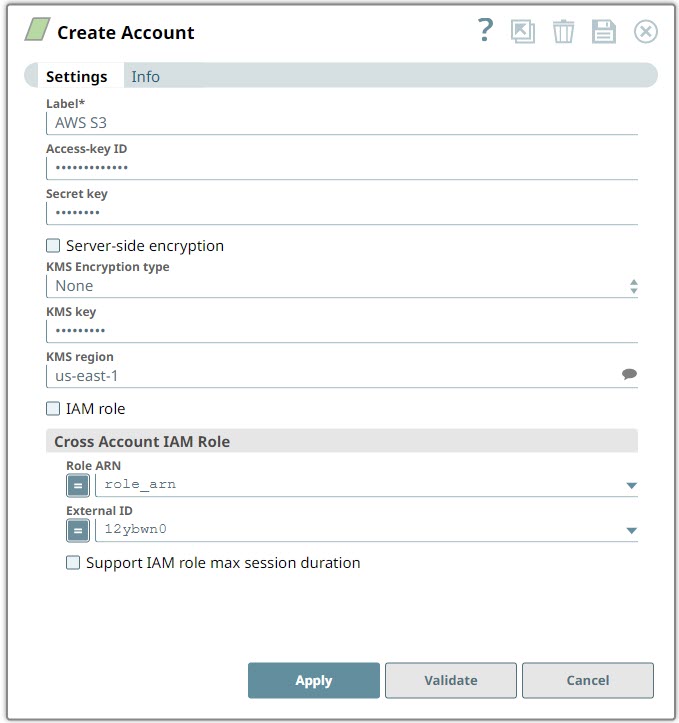
Account settings
- Expression icon (
 ): Allows using
JavaScript syntax to access SnapLogic Expressions to set field values dynamically (if
enabled). If disabled, you can provide a static value. Learn more.
): Allows using
JavaScript syntax to access SnapLogic Expressions to set field values dynamically (if
enabled). If disabled, you can provide a static value. Learn more. - SnapGPT (
 ): Generates SnapLogic Expressions
based on natural language using SnapGPT. Learn
more.
): Generates SnapLogic Expressions
based on natural language using SnapGPT. Learn
more. - Suggestion icon (
 ): Populates a
list of values dynamically based on your Snap configuration. You can select only one
attribute at a time using the icon. Type into the field if it supports a comma-separated
list of values.
): Populates a
list of values dynamically based on your Snap configuration. You can select only one
attribute at a time using the icon. Type into the field if it supports a comma-separated
list of values. - Upload
 : Uploads files. Learn more.
| Field/Field set | Type | Description |
|---|---|---|
| Label
|
String |
Required.Specify a unique label for the account. Default value: None. Example: AWS S3 Account |
| Access-key ID | String | Specify a unique access key ID part of AWS authentication. Warning: The Access-key ID is required when the IAM role is disabled. Default value: None. Example: <Encrypted> |
| Secret key | String | Specify the secret key part of AWS authentication. Warning: The
Secret key is required when the IAM role is disabled. Default value: None. Example: <Encrypted> |
| Server-side encryption | Checkbox |
If selected, the S3 file is written and encrypted using the 256-bit Advanced Encryption Standard AAES256. For Snaps that read objects from S3, this field is not required, as encrypted data is automatically decrypted when data is read from S3. Default status: Deselected |
| KMS Encryption type | Dropdown list | Choose the encryption type from the following list. This field represents the
AWS Key Management Service key used to encrypt S3 objects—it can be the key ID or
ARN.
Note:
Default value: None. Example: Server-Side KMS Encryption |
| KMS key | String | Specify the AWS Key Management Service (KMS) key ID or ARN to be used for
the S3 encryption. This is only required if the KMS Encryption type property is
configured to use the encryption with KMS. Learn more about the KMS key: AWS KMS Overview and Using Server Side Encryption. Note:
Default value: N/A Example: <Encrypted> |
| KMS region | String/Suggestion | Specify or select a name of the region to which the KMS key belongs. Default value: N/A Example: s3.us-east-2 |
| IAM role | Checkbox |
Select this checkbox to use the Groundplex EC2 instance stored in the IAM role, instead of the normal AWS authentication to access the S3 bucket. The Access-key ID and Secret key fields are ignored in this case. Learn more about S3 . Note:
Default status: Deselected |
| Cross Account IAM Role | Use this field set to configure the cross account access. Learn more about setting up Cross Account IAM Role.. | |
| Role ARN | Dropdown list/Expression | Specify the Amazon Resource Name of the role to assume. Default value: None. Example: arn:aws:s3::test-bucket-sa-sl/* |
| External ID | Dropdown list/Expression | Specify an external ID that might be required by the role to assume. Default value: None. Example: 321f248c-8f4a-21be-87c4-184c9f8e2d03 |
| Support IAM role max session duration | Checkbox | Select this checkbox when you want to extend the maximum session duration of an
IAM role defined in AWS. On selecting this checkbox, the cross-account IAM role is
assumed with the maximum session duration defined for the IAM role. Warning: This checkbox is deselected by default. The default maximum session
duration for an IAM role is one hour; however, you can define a custom duration
between 1-12 hours. Learn how to increase the IAM role maximum session
duration limit. We recommend that you select this checkbox if the maximum session duration of the IAM role is greater than an hour. Default status: Deselected |
Troubleshooting
| Error | Reason | Resolution |
|---|---|---|
|
When authorizing an S3 account, if the IAM role checkbox is selected, the following error is displayed on clicking the Validate button.
|
When validating the S3 account if the IAM role checkbox is selected, an error is displayed. | Account validation is not supported when you select the IAM Role checkbox.Ensure that you provide valid Role ARN and External ID values and then click Apply instead of Validate (on the account settings dialog) to authorize and use the account. |
Account Permissions
| Snap | Snap Operation | Minimum S3 Permissions |
|---|---|---|
| S3 Account |
|
s3:ListAllMyBuckets |
| S3 File Writer |
|
s3:PutObject |
|
s3:PutObject, s3:ListBucket | |
| Write object tags | s3:PutObject, s3:PutObjectTagging | |
| Update the Access Control List (ACL). | s3:PutObject, s3:ListAllMyBuckets, s3:PutObjectAcl | |
| Suggest list of buckets in the File name field. | s3:ListAllMyBuckets | |
| Suggest S3 objects in File name field. | s3:ListBucket | |
| S3 File Reader | Read files | s3:GetObject |
| Read versioning-enabled files. | s3:GetObject, s3:GetObjectVersion | |
| Suggest list of buckets in the File field. | s3:ListAllMyBuckets | |
| Suggest S3 objects in the File field. | s3:ListBucket | |
| Suggest list of Version IDs. | s3:ListBucketVersions | |
| Read object tags. | s3:GetObject, s3:GetObjectTagging | |
| File Writer |
|
s3:PutObject |
|
s3:PutObject, s3:ListBucket | |
| ZipFile Writer | Write file with 'File action'=OVERWRITE. | s3:PutObject |
| Write file with 'File action'=IGNORE or ERROR. | s3:PutObject, s3:ListBucket | |
| File Reader | Read files | s3:GetObject |
| ZipFile Reader | Read files | s3:GetObject |
| Multi File Reader | Read one file only without wildcards | s3:GetObject |
|
s3:GetObject, s3:ListBucket | |
| Directory Browser | List files and directories. | s3:ListBucket |
| File Delete | Delete files | s3:DeleteObject, s3:ListBucket |
| File Operation | Copy files. | s3:GetObject, s3:PutObject, s3:ListBucket |
| Move files | s3:GetObject, s3:PutObject, s3:ListBucket, s3:DeleteObject | |
| File Poller | Poll files | s3:GetObject, s3:ListBucket |
Learn more about Setting Permissions and Permissions for the Amazon S3 Bucket.
ACL permissions
|
ACL permission |
Corresponding access policy permissions when the ACL permission is granted on a bucket |
Corresponding access policy permissions when the ACL permission is granted on an object |
|---|---|---|
READ |
s3:ListBucket, s3:ListBucketVersions, and
s3:ListBucketMultipartUploads |
s3:GetObject and
s3:GetObjectVersion |
WRITE |
s3:PutObject
In addition, when the grantee is the bucket owner, granting
|
Not applicable. |
READ_ACP |
s3:GetBucketAcl |
s3:GetObjectAcl and
s3:GetObjectVersionAcl |
WRITE_ACP |
s3:PutBucketAcl |
s3:PutObjectAcl and
s3:PutObjectVersionAcl |
FULL_CONTROL |
Equivalent to granting READ, WRITE,
READ_ACP, and WRITE_ACP ACL permissions.
Accordingly, this ACL permission maps to a combination of corresponding access
policy permissions. |
Equivalent to granting READ, READ_ACP, and
WRITE_ACP ACL permissions. Accordingly, this ACL permission
maps to a combination of corresponding access policy permissions. |