


Binary to Document
Overview
You can use this Snap to convert binary data at the input view to document data at the output view.
- This is a Transform-type Snap.

Limitations
This Snap can receive multiple binary streams. If you select BYTE_ARRAY in the Encode or Decode dropdown list, then the maximum limit for each input binary stream is 2GB. This limit is much lower for other options and depends on the pattern of the input data.
Snap views
| Type | Description | Examples of upstream and downstream Snaps |
|---|---|---|
| Input | Binary input document. Typically binary data as a value of the content key in the input document data. |
|
| Output | The output view provides the binary data as a byte array value to the content key in the output document data. If the input binary data contains header information, the meta data in the header will be present as a value to the key original in the output document data. For example, connect a Salesforce Create Snap as a downstream Snap to upload an attachment to an SObject record. |
|
| Learn more about Error handling. | ||
Snap settings
- Expression icon (
 ): Allows using
pipeline parameters to set field values dynamically (if enabled). SnapLogic Expressions
are not supported. If disabled, you can provide a static value.
): Allows using
pipeline parameters to set field values dynamically (if enabled). SnapLogic Expressions
are not supported. If disabled, you can provide a static value. - SnapGPT (
 ): Generates SnapLogic Expressions
based on natural language using SnapGPT. Learn
more.
): Generates SnapLogic Expressions
based on natural language using SnapGPT. Learn
more. - Suggestion icon (
 ): Populates a
list of values dynamically based on your Snap configuration. You can select only one
attribute at a time using the icon. Type into the field if it supports a comma-separated
list of values.
): Populates a
list of values dynamically based on your Snap configuration. You can select only one
attribute at a time using the icon. Type into the field if it supports a comma-separated
list of values. - Upload
 : Uploads files. Learn more.
| Field/Field set | Type | Description |
|---|---|---|
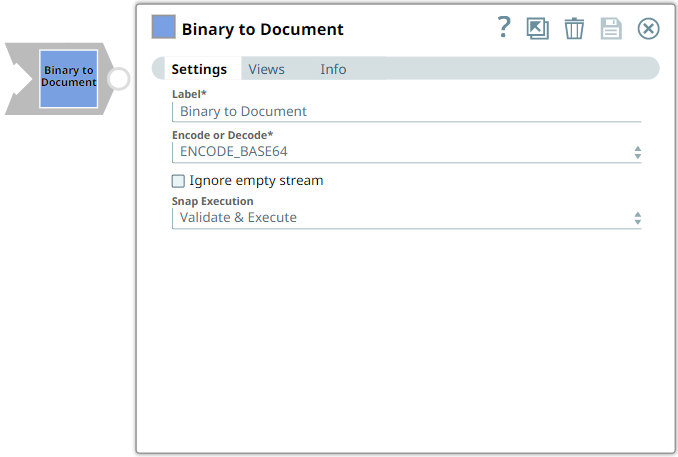
Label
|
String |
Required. Specify a unique name for the Snap. Modify this
to be more appropriate, especially if more than one of the same Snaps is in the
pipeline. Default value: Binary to Document Example: Binary_to_Document |
| Encode or Decode | Dropdown list |
Select one of the following options to encode or decode the content. The options are: ENCODE_BASE64: Allows you to encode the content. DECODE_BASE64: Allows you to decode the content. If the input "content" data has already been Base64-encoded and if you choose ENCODE_BASE64, the Snap does not encode the content again. Similarly, if the input "content" data has not been Base64-encoded and if you choose DECODE_BASE64, the Snap does not attempt to decode the content. DOCUMENT: Allows you to serialize the document into a SnapLogic-specific JSON representation, which allows you to deserialize types such as Dates when read back using a Binary To Document Snap. BYTE_ARRAY: Allows you to pass raw binary data. For example, a compressed .zip file can be created in many formats. The safest way to convert such a file between binary and document is with BYTE_ARRAY. NONE: Allows you to use the Snaplex's default platform specific encoding. You can use this for string text such as a .xml or a .csv format. Because this uses platform specific encoding, it can vary between Snaplexes; therefore, we recommend that you not to use NONE when passing data between Pipelines that may be running in Snaplexes which run different operating systems. This Snap can receive multiple binary streams. If you select BYTE_ARRAY in the Encode or Decode dropdown list, then the maximum limit for each input binary stream is 2GB. This limit is much lower for other options. Depending on the input data, the encoded/decoded data can become larger than 2GB, even if the input data is smaller than 2GB. Default value: ENCODE_BASE64 Example: BYTE_ARRAY |
| Ignore empty stream | Checkbox |
Select this checkbox to enable the Snap to ignore the incoming data stream when no document is received in the input view. Deselect this checkbox to enable the Snap to write empty binary data with a header in the output view when no document is received in the input view. Default status: Deselected Example: Selected |
| Snap execution
|
Dropdown list |
Select one of the three modes in which the Snap executes. Available options are: Validate & Execute: Performs limited execution of the Snap, and generates a data preview during Pipeline validation. Subsequently, performs full execution of the Snap (unlimited records) during Pipeline runtime. Execute only: Performs full execution of the Snap during Pipeline execution without generating preview data. Disabled: Disables the Snap and all Snaps that are downstream from it. Default value: Validate & Execute Example: Disabled |