


Project Manager
Project Manager provides the interface for managing project spaces, projects, and assets. For Environment admins (Org admins), most environment configuration options are now available in Admin Manager and Monitor.
Open Project Manager from the waffle menu. The items in the navigation pane differ for Environment admins and standard users. The following image shows the navigation tree for an Environment admin:
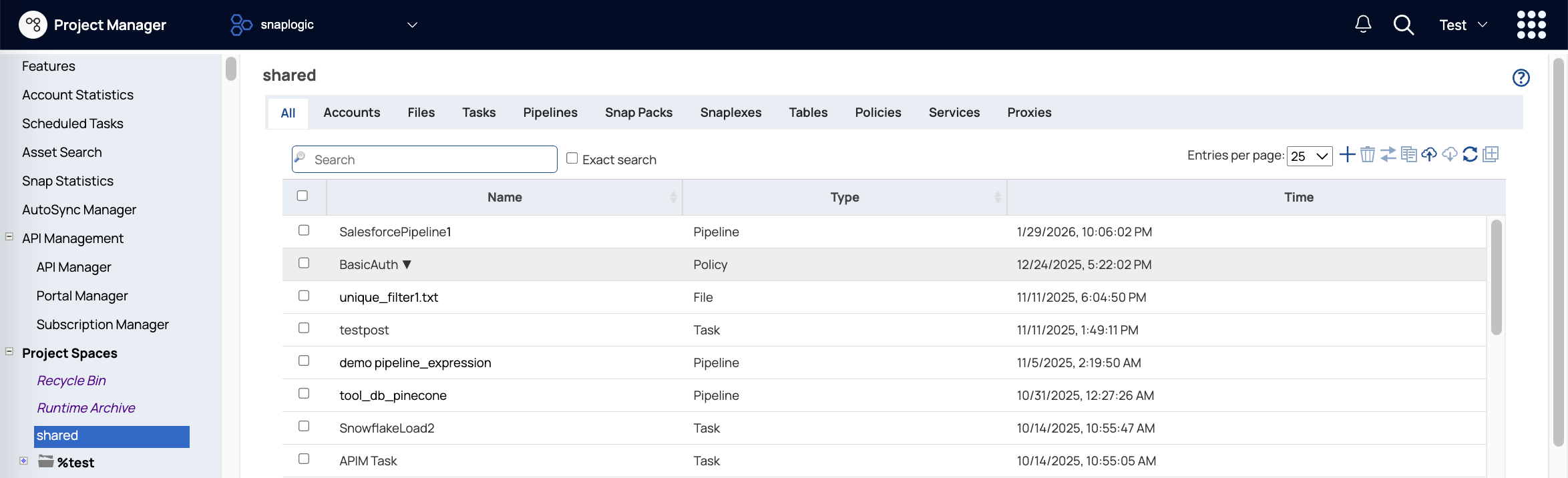
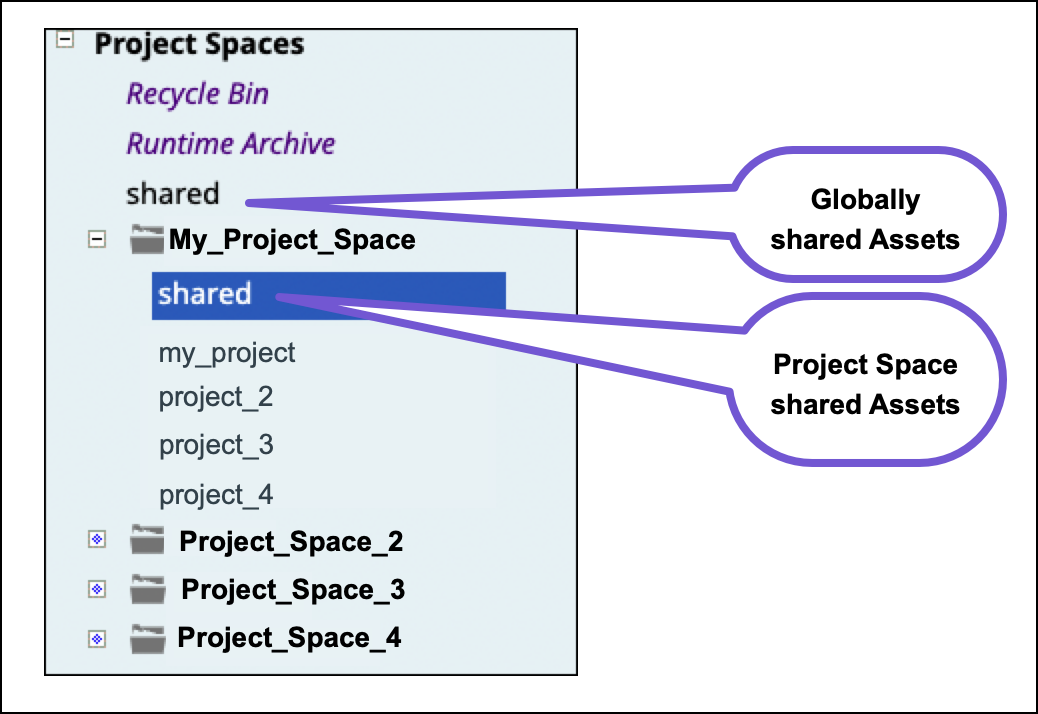
In the Project Manager, the left navigation pane displays the tree of Project Spaces. Project spaces provide a way to group related projects and set permissions for them. Each project space contains a shared folder and can include multiple individual projects. The global shared folder directly under the Project Spaces label contains assets that are accessible from all project spaces and projects in the environment (Org). Similarly, the shared folder in a project space contains assets accessible from all projects in that space.
Manage permissions
Environment admins are responsible for creating and managing project spaces. They can set permissions for users and groups at the project space, project space shared, and project levels. All users have full access to the global shared folder unless an admin changes it.
- Read Only: View assets.
- Read & Write: View and update assets, except for pipelines that you don't own.
- Read & Execute: View assets and execute pipelines.
- Full Access: View assets, update assets, and execute pipelines. Full access set at the project space or project level overrides other permissions.
- Owner: A project creator owns the project and automatically has Full Access. They can modify permissions and change the ownership to another user. Environment admins can also re-assign owner permission to another user.
Permission hierarchy and propagation
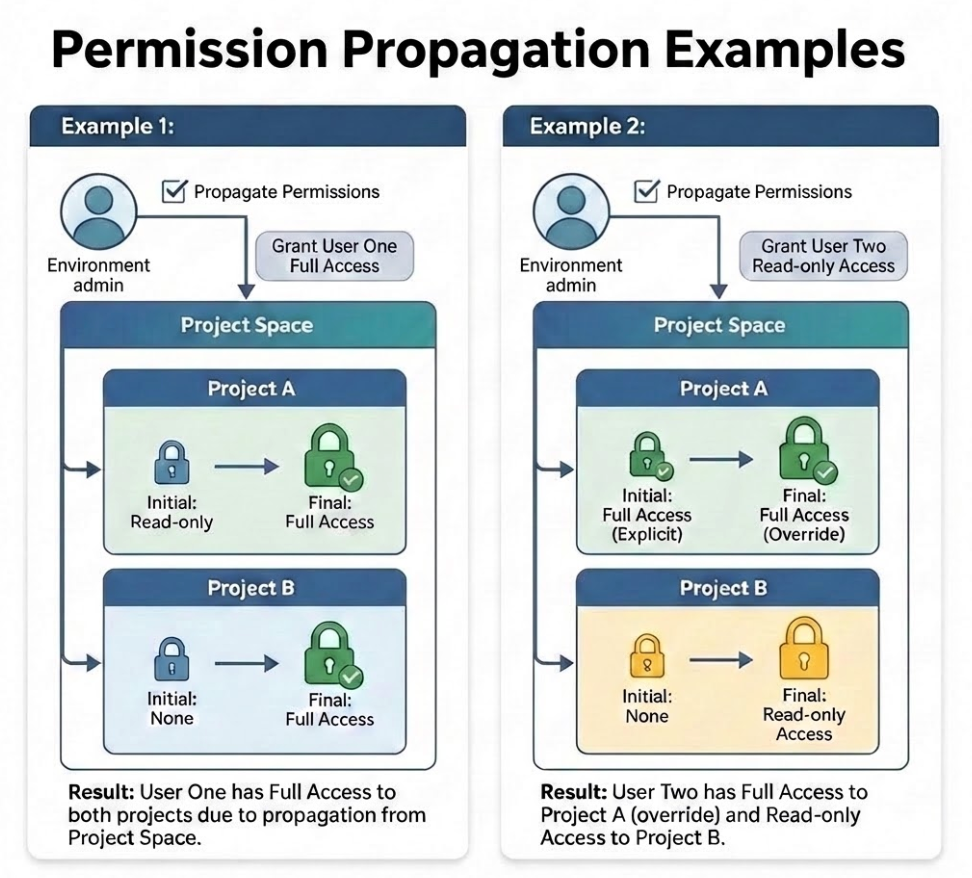
Generally, project permissions override project space permissions. However, Full Access permission can't be overridden. If an individual has Full Access to a project space, but read-only access to a specific project, they have full access to that project. If they have Full Access to a project but read-only to the project space, they have full access to that project.
When Environment admins set permissions, the Propagate permissions checkbox applies the same permission to all projects in that space for a specific user or group. The following image illustrates how permissions propagation works for Full Access permission. In example 1, User One had Read Only: access to Project A until granted Full Access at the project space level. In example 2, User Two retains their Full Access to Project A when granted Read Only: access at the project space level.
Moving projects and assets to another environment
Many SnapLogic customers use separate environments for development and production. The SnapLogic Git Integration enables you to promote projects and assets from one environment to another using Git operations. Without using the Git Integration, you can migrate projects and assets using the following methods:
- Export project: Export all or selected assets to a .zip file for import into another environment (Org).
- Migrate project: Migrate all or selected assets to another environment, leaving the original project unchanged.
- Asset Copy: Copy all, selected, or individual assets to another environment.