


Databricks - Bulk Load
Overview
You can use this Snap to perform a bulk load operation on your DLP instance. The source of your data can be a file from a cloud storage location, an input view from an upstream Snap, or a table that can be accessed through a JDBC connection. The source data can be in a CSV, JSON, PARQUET, TEXT, or an ORC file.
-
COPY INTO - Enables loading data from staged files to an existing table.
-
CREATE TABLE [USING] - Enables loading data from some external sources like JDBC.
-
CREATE TABLE - Creates table in our case temporary table.
-
INSERT INTO - Inserts new rows into a table.
- This is a Write-type Snap.
 Does not support Ultra Tasks
Prerequisites
-
Valid access credentials to a DLP instance with adequate access permissions to perform the action in context.
-
Valid access to the external source data in one of the following: Azure Blob Storage, ADLS Gen2, DBFS, GCP, AWS S3, or another database (JDBC-compatible).
Limitations
-
Snaps in the Databricks Snap Pack do not support array, map, and struct data types in their input and output documents.
Known Issues
-
For the Databricks - Bulk Load Snap, when the Source is an Input view, data is loaded using the "
insert
                into
" command, which is slower in performance compared to the "copy into" command. This performance issue only occurs with Input views. For other cloud sources, the "copy into" command functions properly. - The Databricks - Bulk Load Snap fails to execute the DROP AND CREATE TABLE and ALTER
TABLE operations on Delta tables when using the Databricks SQL persona on the AWS Cloud.
The error message
Operation not allowed: ALTER TABLE RENAME TO is not allowed
              for managed Delta tables on S3
is displayed. However, the same actions run successfully when using the Data Science and Engineering persona on the AWS Cloud. This is a limitation on the Databricks endpoint for serverless configurations or SQL endpoint clusters.Cause: This issue arises due to a limitation within the Databricks SQL Admin Console, which prevents you from adding the configuration parameter
spark.databricks.delta.alterTable.rename.enabledOnAWStrueto the SQL Warehouse Settings. As a result, the Snap encounters restrictions when attempting to perform certain operations on managed Delta tables stored on Amazon S3.Workaround: If you want to use DROP AND CREATE TABLE action in the Databricks - Bulk Load Snap, then connect a Databricks - Execute upstream of the Bulk Load Snap to drop the table using this syntax:
DROP TABLE IF EXISTS <target table
                name>
By doing so, the Databricks - Bulk Load Snap does not invoke the ALTER TABLE SQL, and hence the pipeline runs successfully. You can also drop the table through the console before invoking the pipeline that contains the Databricks -Bulk Load Snap.
Snap views
| Type | Description | Examples of upstream and downstream Snaps |
|---|---|---|
| Input | This Snap can read from two input documents at a time:
|
|
| Output | A JSON document containing the bulk load request details and the result of the bulk load operation. | |
| Learn more about Error handling. | ||
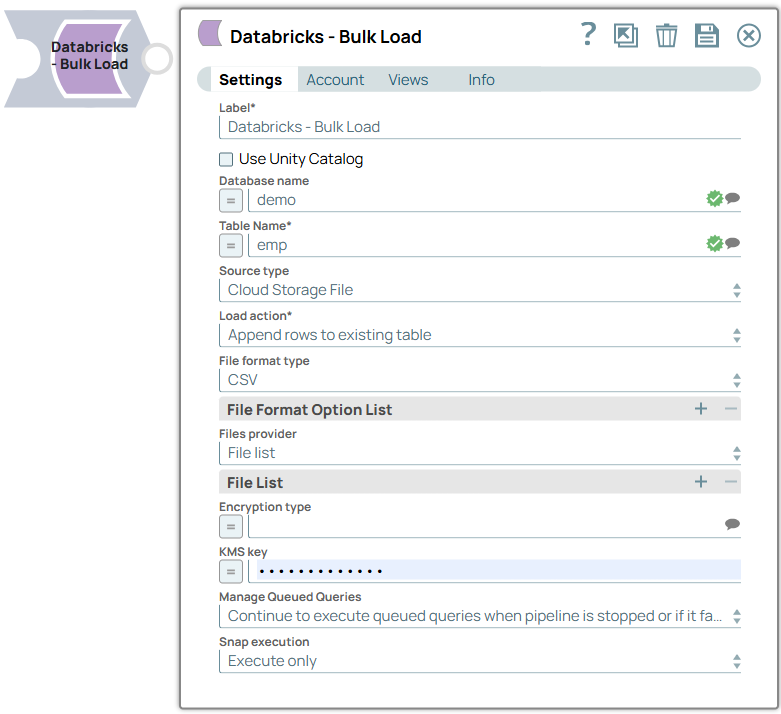
Snap settings
- Expression icon (
 ): Allows using
pipeline parameters to set field values dynamically (if enabled). SnapLogic Expressions
are not supported. If disabled, you can provide a static value.
): Allows using
pipeline parameters to set field values dynamically (if enabled). SnapLogic Expressions
are not supported. If disabled, you can provide a static value. - SnapGPT (
 ): Generates SnapLogic Expressions
based on natural language using SnapGPT. Learn
more.
): Generates SnapLogic Expressions
based on natural language using SnapGPT. Learn
more. - Suggestion icon (
 ): Populates a
list of values dynamically based on your Snap configuration. You can select only one
attribute at a time using the icon. Type into the field if it supports a comma-separated
list of values.
): Populates a
list of values dynamically based on your Snap configuration. You can select only one
attribute at a time using the icon. Type into the field if it supports a comma-separated
list of values. - Upload
 : Uploads files. Learn more.
| Field/Field set | Type | Description |
|---|---|---|
Label
|
String | Required. Specify a unique name for the Snap. Modify this to be more appropriate, especially if more than one of the same Snaps is in the pipeline. Default value: Databricks - Bulk Load Example: Db_BulkLoad_FromS3 |
| Use unity catalog | Checkbox | Select this checkbox to use the Unity catalog to access data from the
catalog. Default status: Deselected |
| Catalog name | String/Expression/ Suggestion | Specify the name of the catalog for using the unity catalog. Default value: hive_metastore Example: xyzcatalog |
| Database name | String/Expression/ Suggestion | Enter the name of the database in which the target table exists. Leave this
blank if you want to use the database name specified in the Database Name
field in the account settings. Default value: None. Example: cust_db |
| Table Name | String/Expression/ Suggestion | Required. Enter the name of the table in which you want
to perform the bulk load operation. Default value: None. Example: cust_records |
| Source Type | Dropdown list | Select the type of source from which you want to load the data into your DLP
instance. The available options are:
Default value: Cloud Storage File Example: Input View |
| Load action | Dropdown list | Select the appropriate load action you want to perform on the target table for
this bulk upload operation. You can:
Default value: Drop and create table Example: Append rows to existing table |
| Source table name | String | Appears when Source Type is JDBC. Enter the source table name. If not specified in this field, the default values (database) configured in Snap’s account for the JDBC Account type are considered. |
| Target Table Columns | Appears when Source Type is Cloud Storage file or
JDBC and Load action is Drop and create table. Use this field set to specify the target table schema for creating a new table. Specify the Column Name and Data Type for as many columns to load in the target table. |
|
| Column | String | Enter the name of the column that you want to load in the target table. |
| Data Type | String | Enter the data type of the values in the specified column. |
| File format type | Dropdown list | Appears when Source Type is Cloud Storage file. Select the file format of the source data file. It can be CSV, JSON, ORC, PARQUET, or TEXT. Default value: CSV Example: PARQUET |
| File Format Option List |
Appears when Source Type is Cloud Storage file. You can use this field set to choose the file format options to associate with the bulk load operation, based on your source file format. Choose one file format option in each row. |
|
| File format option | String/Expression/ Suggestion | Appears when Source Type is Cloud Storage file. Select a file format option from the available options and set appropriate values to suit your bulk load needs, without affecting the syntax displayed in this field. Default value: None. Example: cust_ID |
| Files provider | Dropdown list | Appears when Source Type is Cloud Storage file. Declare the manner in which you are specifying the source files list - File list or pattern. Based on your selection in this field, the corresponding fields change: File list fieldset for File list and File pattern field for pattern. Default value: File list Example: pattern |
| File list |
Appears when Source Type is Cloud Storage file and Files provider is File list. This field set allows you to specify the file paths to be used for the bulk load operation. Choose one file path in each row. |
|
| File | String | Appears when Source Type is Cloud Storage file and Files
provider is File list. Enter the path of the file to be used for the bulk upload operation. Default value: None. Example: cust_data.csv |
| File pattern | String/Expression | Appears when Source Type is Cloud Storage file and Files
provider is pattern. Enter the regex pattern to use to match the file name and/or absolute path. You can specify this as a regular expression pattern string, enclosed in single quotes. Learn more: Examples of COPY INTO (Delta Lake on Databricks) for DLP. Default value: None. Example: folder1/file_[a-g].csv |
| Encryption type | String/Expression/ Suggestion | Appears when Source Type is Cloud Storage file. Select the
encryption type to use for decrypting the source data and/or files staged in the
S3 buckets. Tip: Server-side encryption is available only for S3
accounts. Default value: None. Example: Server-Side KMS Encryption |
| KMS key | String/Expression | Appears when Source Type is Cloud Storage file and Encryption
type is Server-Side KMS Encryption. Enter the KMS key to use to encrypt the files. In case that your source files are in S3, see Loading encrypted files from Amazon S3 for more detail. Default value: None. Example: MF96D-M9N47-XKV7X-C3GCQ-G5349 |
| Number of Retries | Integer | Appears when Source Type is Input View. Specifies the maximum number of retry attempts when the Snap fails to write. Example: 3 Minimum value: 0 Default value: 0 |
| Retry Interval (seconds) | Integer | Appears when Source Type is Input View. Specifies the minimum number of seconds the Snap must wait before each retry attempt. Example: 3 Minimum value: 1 Default value: 1 |
| Manage Queued Queries | Dropdown list | Select this property to determine whether the Snap should continue or cancel
the execution of the queued Databricks SQL queries when you stop the
pipeline. Note: If you select Cancel queued queries when pipeline is stopped or
if it fails, then the read queries under execution are cancelled, whereas
the write type of queries under execution are not cancelled. Databricks internally
determines which queries are safe to be cancelled and cancels those
queries. Note: Due to an issue with DLP, aborting an ELT pipeline
validation (with preview data enabled) causes only those SQL statements that
retrieve data using bind parameters to get aborted while all other static
statements (that use values instead of bind parameters) persist.
To avoid this issue, always configure your Snap settings to use bind parameters inside its SQL queries. Default value: Continue to execute queued queries when pipeline is stopped or if it fails. Example: Cancel queued queries when pipeline is stopped or if it fails |
| Snap execution
|
Dropdown list |
Choose one of the three modes in
which the Snap executes. Available options are:
Default value: Execute only Example: Validate & Execute |
Troubleshooting
| Error | Reason | Resolution |
|---|---|---|
| Missing property value | You have not specified a value for the required field where this message appears. | Ensure that you specify valid values for all required fields. |