


Inserting and Querying Custom Metadata from the Flight Metadata Table
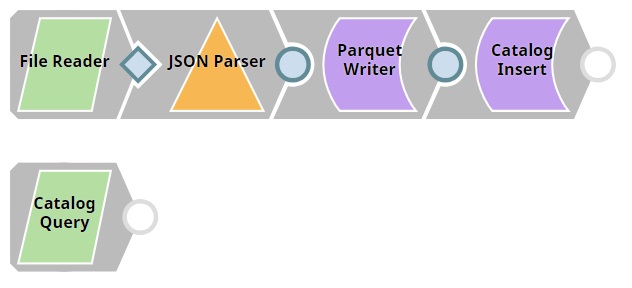
The Pipeline in this zipped example, MetadataCatalog_Insert_Read_Example.zip, demonstrates how you can:
- Use the Catalog Insert Snap to update metadata tables.
- Use the Catalog Query Snap to read the updated metadata information.
In this example:
- We import a file containing the metadata.
- We create a parquet file using the data in the imported file
- We insert metadata that meets specific requirements into a partition in the target table.
- We read the newly-inserted metadata using the Catalog Query Snap.
Download this Pipeline
-
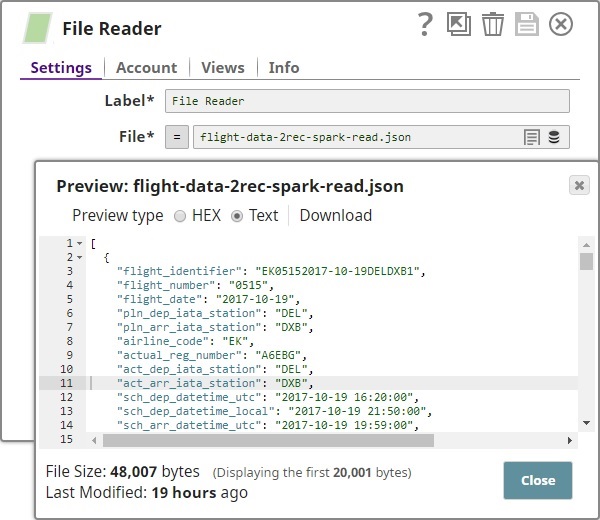
The
File Reader
Snap read flight statistics
and the JSON Parser Snap parses the data into
a JSON file.
-
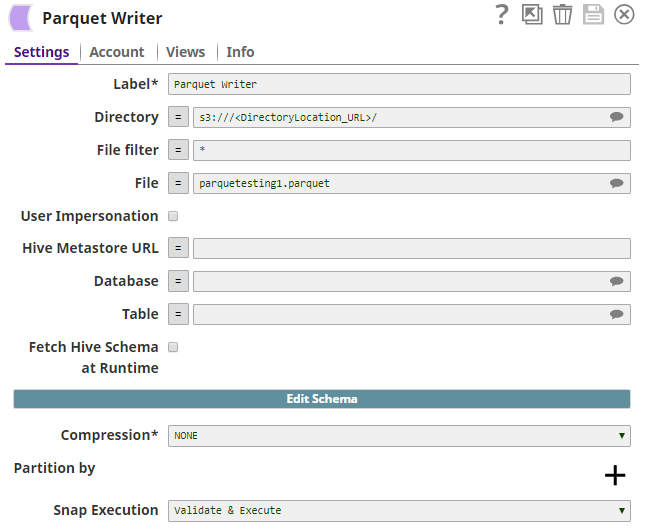
The Parquet Writer Snap creates a Parquet file
with the data of the JSON file, in an S3 database.
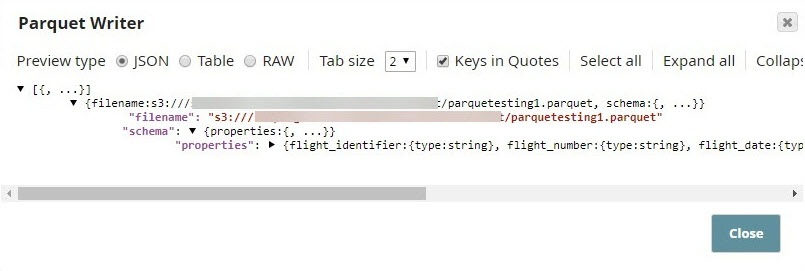
The output of the Parquet Writer Snap includes the schema of the file. This is the metadata that must be included into the catalog.
-
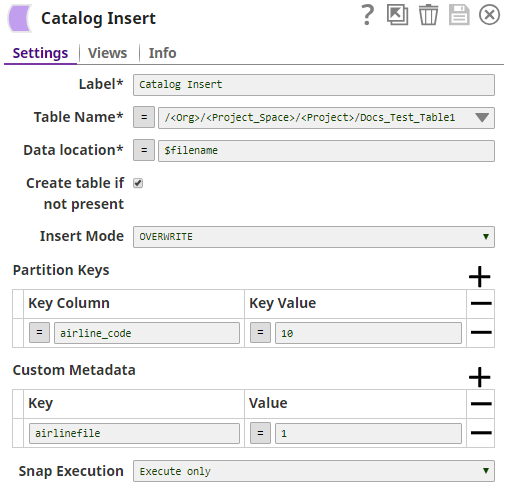
The
Catalog
Insert
Snap picks up the schema from
the Parquet file and associates it with a specific partition in the target table. It also
adds a custom property to the partition.
-
Once the Snap completes execution, the table is inserted into the metadata catalog and
you can view the table in the SnapLogic Manager.
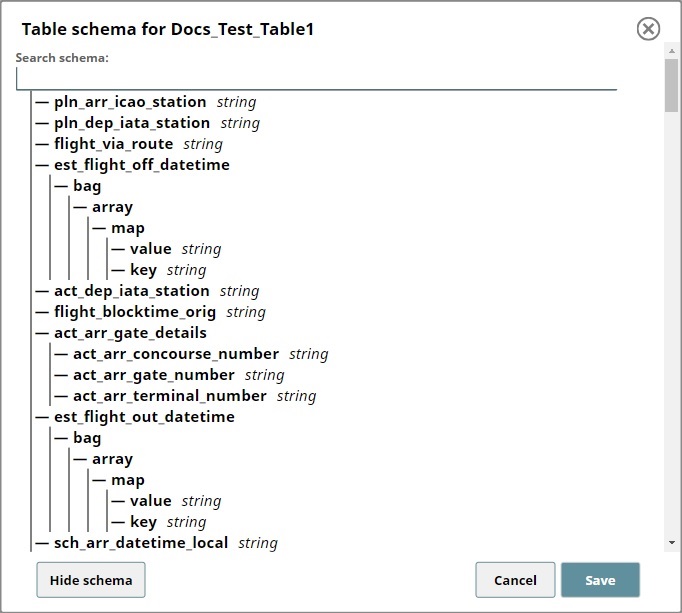
To view the table, navigate to the Project where you have created the Pipeline, click the Table tab, and then click the new table created after executing the Pipeline. This displays the table. Click Show schema to view the metadata.
-
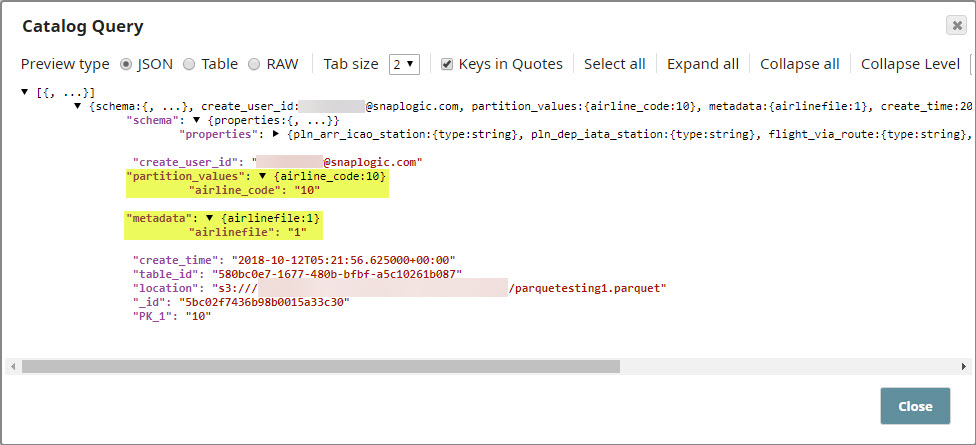
The Schema view does not display the custom metadata that you inserted into the
partition. Use the
Catalog
Query
Snap to view all
the updates made by the
Catalog
Insert
Snap.

- Download and import the pipeline into SnapLogic.
- Configure Snap accounts as applicable.
- Provide pipeline parameters as applicable.