


AlloyDB Vector Search
Overview
You can use this Snap to perform advanced vector-based queries using the SELECT statement.
- This is a Read-type Snap.
 Works in Ultra Tasks
Prerequisites
A valid account with the required permissions.
Snap views
| Type | Description | Examples of upstream and downstream Snaps |
|---|---|---|
| Input |
|
|
| Output | For each input document, all results are grouped in a single output document. | |
| Learn more about Error handling. | ||
Snap settings
- Expression icon (
 ): Allows using
pipeline parameters to set field values dynamically (if enabled). SnapLogic Expressions
are not supported. If disabled, you can provide a static value.
): Allows using
pipeline parameters to set field values dynamically (if enabled). SnapLogic Expressions
are not supported. If disabled, you can provide a static value. - SnapGPT (
 ): Generates SnapLogic Expressions
based on natural language using SnapGPT. Learn
more.
): Generates SnapLogic Expressions
based on natural language using SnapGPT. Learn
more. - Suggestion icon (
 ): Populates a
list of values dynamically based on your Snap configuration. You can select only one
attribute at a time using the icon. Type into the field if it supports a comma-separated
list of values.
): Populates a
list of values dynamically based on your Snap configuration. You can select only one
attribute at a time using the icon. Type into the field if it supports a comma-separated
list of values. - Upload
 : Uploads files. Learn more.
| Field/Field set | Type | Description |
|---|---|---|
Label
|
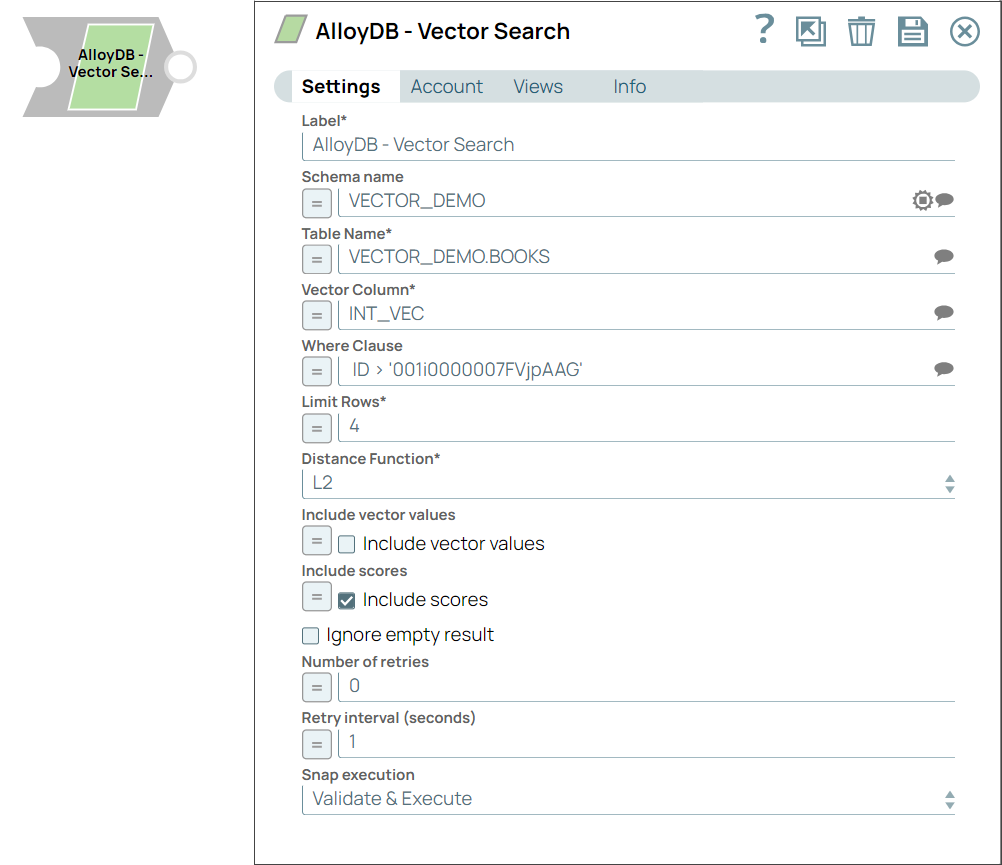
String | Required. Specify a unique name for the Snap. Modify this to be more appropriate, especially if more than one of the same Snaps is in the pipeline. Default value: AlloyDB Vector Search Example: AlloyDB Vector Search |
| Schema name | String/Expression/ Suggestion |
Specify the schema name when searching for a vector. Default value: N/A Example: VECTOR_DEMO |
| Table name | String/Expression/ Suggestion | Specify the table name when searching for a vector. Warning: The
values can be passed using the pipeline parameters but not the upstream
parameter. Default value: N/A Example: VECTOR_DEMO.BOOKS |
| Vector Column | String/Expression/ Suggestion | Required. Specify the vector column name to search. Default value: N/A Example: INT_VEC |
| Where Clause | String/Expression/ Suggestion | Specify the where clause to use in the vector search query statement. Note:
Because of the limitation of the SQL standard, you cannot use the
_SL_DISTANCE column in the where clause.Default value: N/A Example: ID > '001i0000007FVjpAAG' |
| Limit Rows | Integer/Expression | Required. Specify the number of results to return for
each query. Default value: 4 Example: 3 Minimum value: 1 |
| Distance Function | Dropdown list | Required. Choose the similarity function to compare
vectors. The available options are:
Learn more about the Vector Similarity Functions. Default value: L2 Example: COSINE |
| Include vector values | Checkbox/Expression | Select this checkbox to include vector values in the response. Note: This field
does not support input schema from the upstream Snaps. Default status: Deselected |
| Include scores | Checkbox/Expression | Select this checkbox to include similarity scores in the response. Note:
Default status: Selected |
| Ignore empty result | Checkbox | Select this checkbox if you want the Snap to produce no output when no matching
vector is found. Otherwise, the Snap outputs a blank document when no vectors
match. Default status: Deselected |
| Number of retries | Integer/Expression | Specify the maximum number of attempts to make to receive a response. Default value: 0 Example: 3 |
| Retry interval (seconds) | Integer/Expression | Specify the minimum number of seconds the Snap must wait before each retry
attempt. Default value: 0 Example: 3 |
| Snap execution
|
Dropdown list |
Choose one of the three modes in
which the Snap executes. Available options are:
Default value: Execute only Example: Validate & Execute |