OpenAPI Function Generator
Overview
You can use this Snap to convert an OpenAPI specification into functions for tool calling.
- This is a Format-type Snap.
 Works in Ultra Tasks
Prerequisites
None.
Limitations and known issues
None.
Snap views
| Type | Description | Examples of upstream and downstream Snaps |
|---|---|---|
| Input | This Snap can have none or one document input view. The input can include
tools. If present, the Snap concatenates it with the OpenAPI
function. |
|
| Output | This Snap has exactly one document output view. The output contains a list of
tools, each representing an OpenAPI function with its metadata,
including the function name, description, method, URL, security settings, headers,
and a JSON schema defining the input parameters. |
|
| Learn more about Error handling. | ||
Snap settings
- Expression icon (
 ): Allows using
JavaScript syntax to access SnapLogic Expressions to set field values dynamically (if
enabled). If disabled, you can provide a static value. Learn more.
): Allows using
JavaScript syntax to access SnapLogic Expressions to set field values dynamically (if
enabled). If disabled, you can provide a static value. Learn more. - SnapGPT (
 ): Generates SnapLogic Expressions
based on natural language using SnapGPT. Learn
more.
): Generates SnapLogic Expressions
based on natural language using SnapGPT. Learn
more. - Suggestion icon (
 ): Populates a
list of values dynamically based on your Snap configuration. You can select only one
attribute at a time using the icon. Type into the field if it supports a comma-separated
list of values.
): Populates a
list of values dynamically based on your Snap configuration. You can select only one
attribute at a time using the icon. Type into the field if it supports a comma-separated
list of values. - Upload
 : Uploads files. Learn more.
| Field/Field set | Type | Description |
|---|---|---|
Label
|
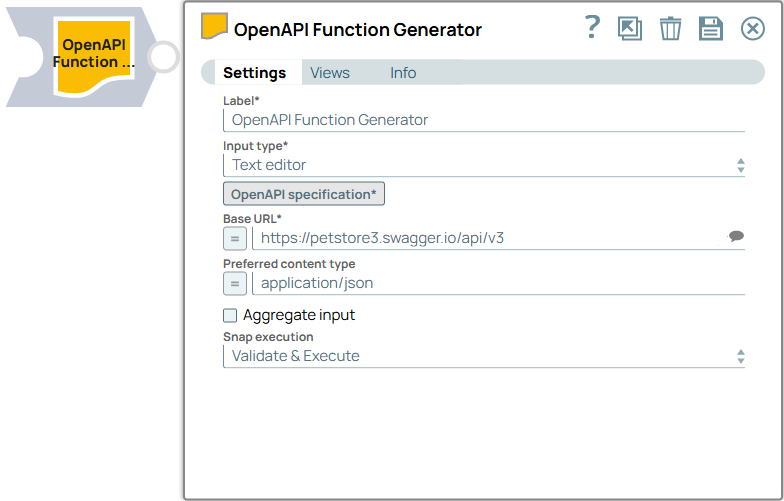
String | Required. Specify a unique name for the Snap. Modify this to be more appropriate, especially if more than one of the same Snaps is in the pipeline. Default value: OpenAPI Function Generator Example: Generate API Functions |
| Input type | Dropdown list | Required. Choose the input method for the OpenAPI
specification. Available options are:
Default value: Text editor Example: URL |
| OpenAPI specification | Button |
Appears when you choose Text editor for the Input type field. Required. Click the button to open the text editor for specifying the OpenAPI specification content in JSON or YAML format. |
| OpenAPI specification | String/Expression |
Appears when you choose Input document for the Input type field. Required. Specify the OpenAPI specification content in JSON or YAML format. |
| OpenAPI specification file | String/Expression | Appears when you choose File for the Input type field. Required. Specify the OpenAPI specification file to generate functions. You can also upload the file from your SLDB.Default value: N/A Example: openapi_spec.yaml |
| OpenAPI specification URL | String/Expression | Appears when you choose URL for the Input type field. Required. Specify the OpenAPI specification URL to generate functions.Default value: N/A Example: openapi_spec.yaml |
| Base URL | String/Expression/ Suggestion | Required. Specify the base URL for the OpenAPI
specification. Default value: N/A Example: https://petstore3.swagger.io/api/v3 |
| Preferred content type | String/Expression | Required. Specify the content type in a MIME (Multipurpose Internet Mail Extensions) type format
for the OpenAPI specification. Important: If you do not provide a
content type or if it is not supported, the Snap defaults to the first supported
content type from the specification. Default value: application/json Example: application/yaml |
| Aggregate input | Checkbox/Expression |
Select this checkbox to aggregate the input content into a single output document. When selected, the Snap isn't compatible with Ultra Tasks. Note: This field does not support upstream values.
Default status: Deselected |
| Tool path | String/Expression/ Suggestion | The full path to the tool pipeline. |
| Account path | String/Expression/ Suggestion | The full path to the account for the tool pipeline. |
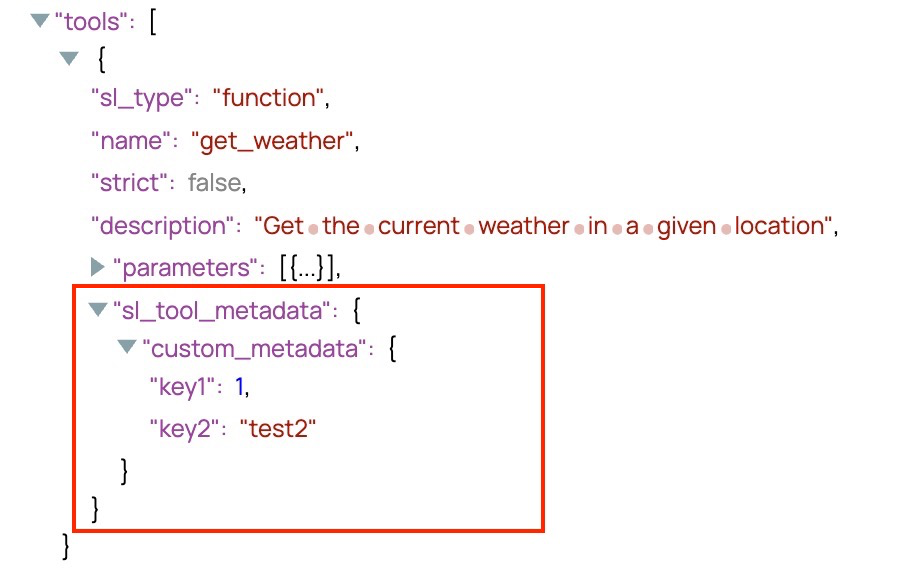
| Custom metadata | The metadata associated with the
function definition. This metadata is user-defined and can be used in subsequent
Snaps, such as the Pipeline Execute Snap, to enable more flexible and contextual execution.
These custom metadata key-value pairs appear under the
|
|
| Key | String/Expression | Specify the key to use for the metadata. If the metadata key is empty, the
Snap displays an error. Default value: N/A Example: key1 |
| Value | String/Expression |
Specify the value to use for the metadata. If the metadata value is empty, no error is displayed, however, appears as null in the output.
Default value: N/A Example: value1 |
| Snap execution
|
Dropdown list |
Choose one of the three modes in
which the Snap executes. Available options are:
Default value: Validate & Execute Example: Execute only |
Examples
Custom metadata example
For all Function Generator Snaps, you can define metadata for your tool definitions. The following screenshot provides an example of how the Snap output displays the metadata.