


New Snap template
This Snap reads/fetches/writes/parses/executes/transforms/calls/creates ....
Supported Accounts
- AWS Signature V4 Account
- Basic Authentication Account
- Digest Authentication Account
- API Suite - Google Service Account
- NTLM Account
- This is a Read-type Snap.
Prerequisites
None.
Limitations
- This Snap does not support Ultra Tasks
Known issues
None.
Snap views
| Type | Description | Examples of upstream and downstream Snaps |
|---|---|---|
| Input | This Snap supports a maximum of one binary or document input view.
|
|
| Output | This Snap has at the most one document output view. The Snap provides the result generated by the Amazon Bedrock Converse API. | |
| Learn more about Error handling. | ||
Examples
- Providing User-defined Object Metadata and Object Tags using the S3 File Writer Snap: This example demonstrates how to provide user-defined metadata.
- S3 File Writer - Typical Snap Configuration: This example demonstrates how to configure an S3 File Writer Snap.
Snap settings
| Field/Field set | Description |
|---|---|
|
Label String
|
Required.Specify a unique name for the Snap. Modify this to
be more appropriate, especially if there are more than one of the same Snap in the
pipeline.
Default value: S3 File Writer Example: Write CSV file to S3 staging bucket |
Name
String/Expression |
Required. Specify the tool name, and the model calls that specific tool with the same name. Important: Following are the supported characters for the function
name: lowercase (a-z), uppercase
(A-Z), numbers (0-9),
underscores (_), and dashes
(-).
Maximum value 64 characters Default value: N/A Example: weather_tool |
Description
String/Expression |
A description of what the function does. Default value: N/A Example: weather_tool |
Strict Mode
Checkbox |
For OpenAI LLMs only Select this checkbox to ensure that the Snap validates the input parameters strictly according to the defined schema or constraints. When enabled, the model will follow the exact schema defined in the Parameters field. Default status: Deselected Note: The Snap supports only a subset of JSON Schema when this checkbox is selected. A list of unsupported JSON schema can be found. here. If the checkbox is selected, all fields must be required. Otherwise, OpenAI will respond with an error.
|
Input Mode
Dropdown list |
The mode in which the function generator operates.
Default value: Express Mode Example: Express Mode |
| Parameters |
Appears when Express Mode is selected. The parameters the function accepts. Default value: Example: |
JSON Schema
Button |
Appears when JSON Schema Mode is selected. The JSON Schema for the function definition. Click JSON Schema to open the JSON Editor Default value: Default JSON Schema editor contents: 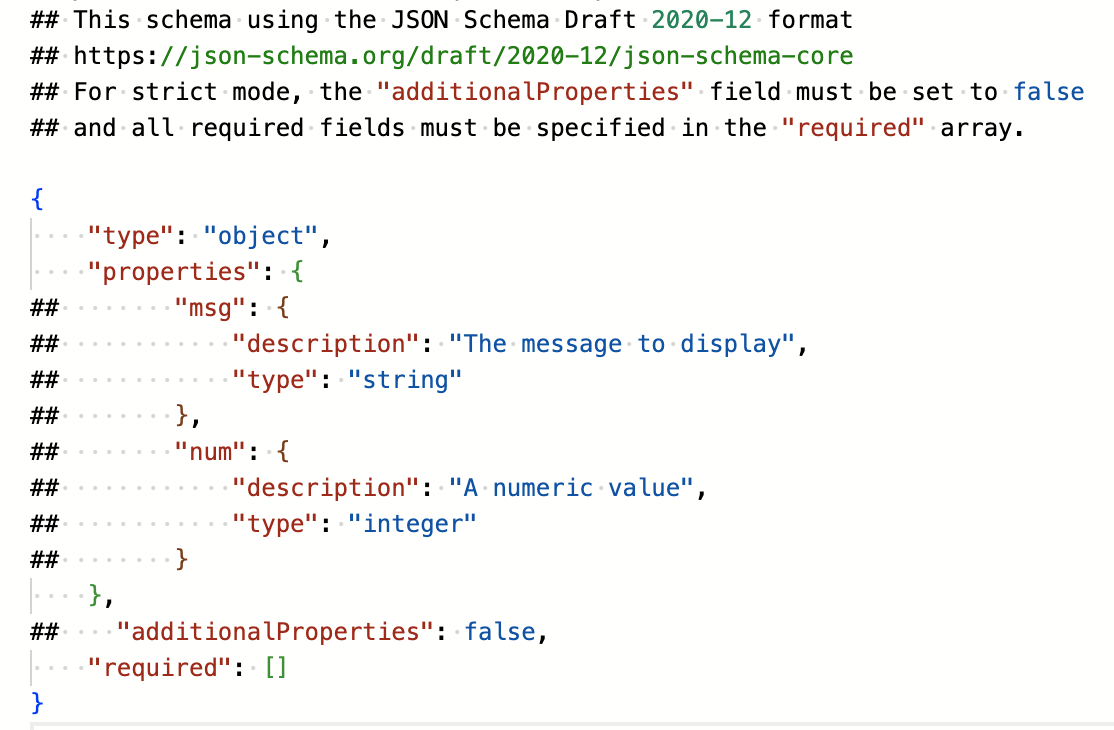 |
Tool path
String/Expression |
The pipeline that will be executed when this tool is called. Default value: N/A Example: weather_tool_pipe |
|
Snap execution Dropdown list
|
Choose one of the three modes in
which the Snap executes. Available options are:
Default value: Execute only Example: Validate & Execute |
Temporary files
During execution, data processing on Snaplex nodes occurs principally in-memory as streaming and is unencrypted. When processing larger datasets that exceed the available compute memory, the Snap writes unencrypted pipeline data to local storage to optimize the performance. These temporary files are deleted when the pipeline execution completes. You can configure the temporary data's location in the Global properties table of the Snaplex node properties, which can also help avoid pipeline errors because of the unavailability of space. Learn more about Temporary Folder in Configuration Options.
Troubleshooting
| Error | Reason | Resolution |
|---|---|---|
| The following function (s) does not have a corresponding tool pipeline or the schema is invalid: get_weather _api | Tool pipeline path is incorrect. | Include a pipeline path for the function defined and ensure the tool type is valid. |
| The Agent is not complete but the execution is completed. | The iteration limit is reached, but the finish reason is not a stop condition. | Consider providing a greater iteration limit. |
| Duplicate tool names found: get_weather_api | The duplicated tool names will be automatically renamed to avoid conflicts. | Rename the tools. |